
User simulation
Users with Simulator rights are able to simulate other users for troubleshooting purposes. When simulating a user, the user interface is started using the rights and user preferences of that user to provide the exact same view of the application.
When a user with Simulator rights logs on to the application, a button is displayed next to the password field.
The log on dialog is skipped if Windows authentication is used. Hold the Ctrl key when logging on to force the dialog to be shown.
To simulate a user, enter your own credentials and then click the button to reveal the user simulation input field.
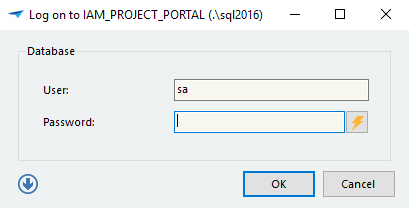
Enter the name of the user you want to simulate and press OK.
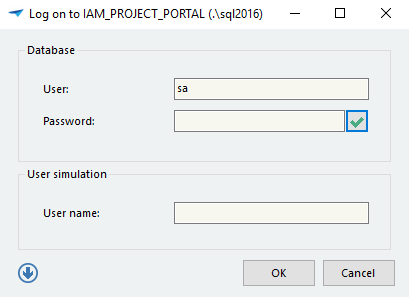
If you are allowed to simulate the specified user, the user interface will now load the rights and user preferences of that user.