
Universal (Alpha)
A new user interface, capable of providing a state-of-the-art user experience on Mobile, Desktop and Web is currently under development.
This document focuses on the current Alpha version of Universal. Capabilities, deployment guidelines and requirements will change as development continues.
Universal set-up
The Alpha version is deployed as a web application. Universal can be downloaded like any other Thinkwise user interface from the Thinkwise Community Portal.
Requirements
There are a few prerequisites to be able to run Universal as GUI for a model.
As of Alpha 0.57, Universal uses a dedicated version of Indicium. Make sure to download and install Indicium Universal.
The easiest way to run Universal is to deploy it on the same server as Indicium. Browser security prohibits Universal from interacting with an Indicium on a different server by default. If required, Indicium settings can be configured to support this scenario.
Since this is an Alpha version, no compatibility plan is in place just yet. Universal only supports 2018.3 and future versions. Ensure you have the latest hotfixes applied and the latest version of Indicium installed.
Applying further hotfixes or installing a subsequent version of Indicium might require an updated version of Universal as well.
The latest Alpha version of Universal, along with the latest version of Indicium Universal and the most recently published hotfixes can be found in the Thinkwise Community Portal.
It is strongly discouraged to run the Alpha version of Universal on production environments!
Deployment
Universal is a web application using static files. Besides the http server, no further application process is running.
Indicium is mandatory to use Universal and most Indicium installations are currently deployed on IIS. Deployment of Universal on IIS is shown as an example. Any webserver capable of serving static files can be used to deploy Universal.
The unzipped Universal folder can be placed next to Indicium. A common location for Universal would be in the inetpub\wwwroot folder.
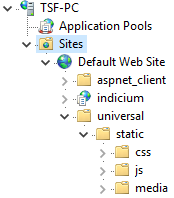 Location of Universal on an IIS server, next to Indicium
The Universal folder should not be converted to an application, as it is a static website. No application pool is required.
Accessing Universal
Universal can be accessed using a browser to access the location of the web application. In the example above, this would be https://tsf-pc/universal.
A login screen will be shown where the URL to access Indicium can be configured.
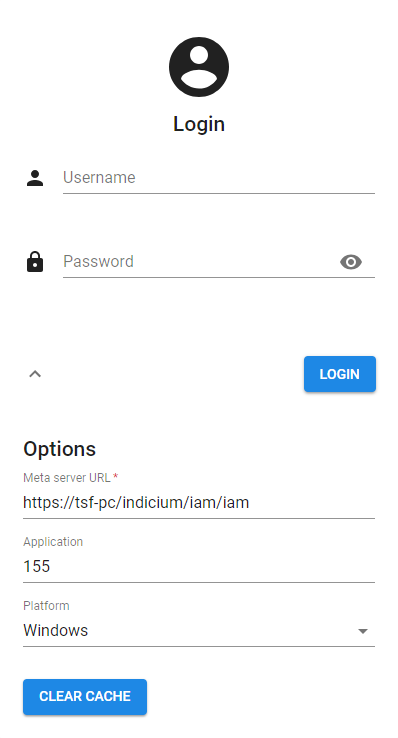 Login screen of Universal
A modern browser is required to access Universal. A recent version of Chrome or Firefox is preferred over Opera, Edge and Safari - minor issues might occur during Alpha. Using Universal with IE is not supported.
The application can be installed as a progressive web app (PWA) to run stand-alone on your desktop or mobile device. This is done through the browser, please check the instructions for installing PWA's for your browser, e.g. Chrome, or device.
Running Universal on IAM
When Indicium is configured on an IAM containing one or more applications for the user, the following URL can be used to run products present in this Software Factory: https://tsf-pc/indicium/iam/iam.
The application ID or alias can be used to load a specific application from IAM. If left empty, the default application will be shown. Other applications will be available through the menu.
The platform can be chosen by the user to load the menu for either Windows, Web or Mobile.
Running Universal on SF
To run products in a development environment directly on the Software Factory, Indicium must be configured on the IAM containing the Software Factory, often referred to as an IAM_DEV.
The following URL can be used to run products present in this Software Factory: https://tsf-pc/indicium/iam/sf.
The application ID or alias provided in the login configuration screen should match an application ID or alias present as a Runtime configuration in the Software Factory. When no application ID or alias is provided, all available runtime configurations will be shown in the menu as applications.
The user can log in using the credentials used as configured in the IAM_DEV.
Important: The desired runtime configuration(s) must be activated in the Software Factory for the user logging in to the application!
The RDBMS user in the Software Factory must match the user ID as defined in IAM.
Troubleshooting
- Download the latest Indicium Universal version, Universal version and run all upgrades and hotfixes on the SF and IAM.
- Try running Universal and Indicium on the same server. The server name for both URLs must be the same.
- Use fully qualified server names, like
server.thinkwisesoftware.com/indiciuminstead ofserver/indicium. - Test access to Indicium by accessing the URL directly with the used credentials.
- Clear the cache of your browser. Alternatively, try incognito mode.
- If possible, update your browser or switch to a recommended browser.
- Ensure the user has access to the application in the Intelligent Application Manager or runtime configuration in the Software Factory.
- Ensure a list bar menu or tile menu is available to the user.
- Run the Correct foreign key casing task in the Software Factory and re-synchronize with IAM if needed to prevent casing issues.
- Validate the model. Universal is sensitive to incorrect models.
Current capabilities
Please check to the feature matrix in the Thinkwise Community Portal to learn more about the capabilities of the current release.
Note on tab page navigation: This feature is partly available. The contents of the first component tab page will be shown in the screen, but navigation to sibling tabs or detail tabs is not yet available in the current Alpha version.
Major changes - By design
Some new concepts have been introduced and some model settings are interpreted differently than other GUI's. This is by design. All designed changes do remain subject to change.
Model loading
Contrary to the current user interfaces, the full model of the application is not loaded. Instead, segments of the model are loaded on-demand, when a screen is opened, when a look-up is translated or when a component is initialized. This allows Universal to quickly start massive applications.
Future optimizations include pre-fetching segments required for working offline, pre-fetching often-used model segments, pre-fetching model segments for the current process flow etc.
Vertical scrolling
All components in Universal are allowed to grow indefinitely vertically. This can introduce scrollbars. To prevent parallel scrollable components, future releases will allow the screen type itself to grow indefinitely vertically as well, providing a global scroll bar for the entire screen.
Breakpoints
With vertical space usage covered, limited horizontal space is resolved in a different manner. Where the current generation of GUI's rely on the components dealing with limited horizontal space, Universal allows for screen-type switching at runtime, depending on the horizontal space.
This concept is known as breakpoints. For every screen type, breakpoints can be defined which come into effect when a certain minimum width is reached. This is done using a screen type naming convention in 2018.3 and will be formalized in the future.
For instance, a customer screen uses master_detail as screen type. A new screen type named master_detail_<1000 can be added in the model. This is a breakpoint screen type. The breakpoint screen type will be applied when the available horizontal space is 1000px or less. A different layout of screen components or different screen components altogether can be used in this breakpoint. A second breakpoint can be added named master_detail_<400 which will be applied when the available is 400 or less. This way, multiple component layouts can be added for various sizes without having to resort to variants and platform-specific menus.
Never directly use the breakpoint screen types for subjects.
Form tabs as sections
Form tabs are not implemented because of the ability to grow indefinitely vertically. Instead, new tabs are interpreted by Universal as new sections. The number of form columns can vary for each section. Groups are kept together in form columns as much as possible and will be spread evenly over a section.
Form column count
The number of columns in the form is based on the number of form groups within a section. The number of form columns will never exceed the number of groups in the section. An arbitrary maximum of 3 form columns is active for now.
This is by design for the current Alpha version but candidate to be revised. Either a developer will be able to set the maximum number of columns for a form at the screen type or Universal will use a heuristic algorithm to determine the optimal maximum number of columns given the horizontal space.
Theme
Universal is outfitted with a light and dark theme, highlighted by accent colors. The light switch in the title bar can be used by the user to switch between these modes. The developer can influence the theme using extended properties in 2018.3. This will be formalized in the future.
The following colors can be set by the developer:
| Extended property | Description | Example |
|---|---|---|
| PrimaryColor | The main color of the application | #673AB7 |
| AccentColor | The secondary color, used sparingly to highlight elements | #CDDC39 |
| WarnColor | The color of errors / warnings | #FFC107 |
The following fonts can be set by the developer:
| Extended property | Description | Example |
|---|---|---|
| HeadingText | The font id of the font to be used in headings | Montserrat_9_black |
| BodyText | The font id of the font to be used for all other cases | Verdana_10__51_50_50 |
The developer can influence the default light-switch status as following:
| Extended property | Description | Example |
|---|---|---|
| ThemeLoginType | The type of theme for the login component | light \ dark |
| ThemeSidebarType | The type of theme for the sidebar component | light \ dark |
| ThemeWorkspaceType | The type of theme for the workspace component | light \ dark |