
Configuring IIS
The Thinkwise Web GUI runs on IIS version 8 or up (10 is advised) and requires the .NET Framework 4.7 as well as the ASP.NET Framework.
An IIS version is included with the standard installation of Windows on a server or PC. Different versions of IIS are released with the different versions of Windows. Checking the installed IIS version can be done by typing http://localhost in the web browser, the IIS version screen will then be displayed. In the figure below, there are two examples which can be displayed on screen. An IIS 7 version is shown on the left and an IIS 8 version on the right.
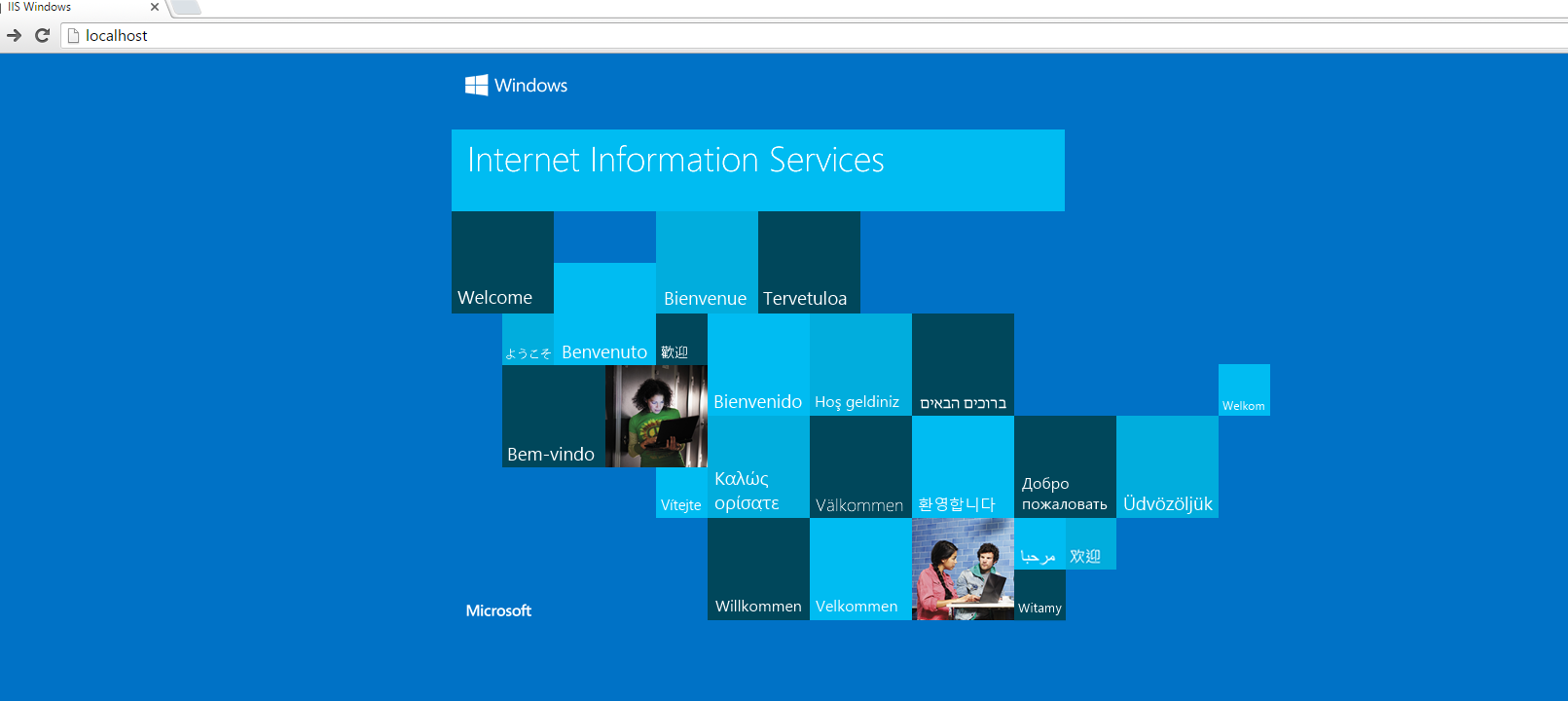 IIS 8 welcome page
Installation
IIS
The standard installation of IIS does not contain all components that are needed to run the Thinkwise Web GUI. The right components can be enabled via Windows' Windows Feature screen, which is accessible via the Windows control panel. In the image below, the necessary components are for different Windows versions.
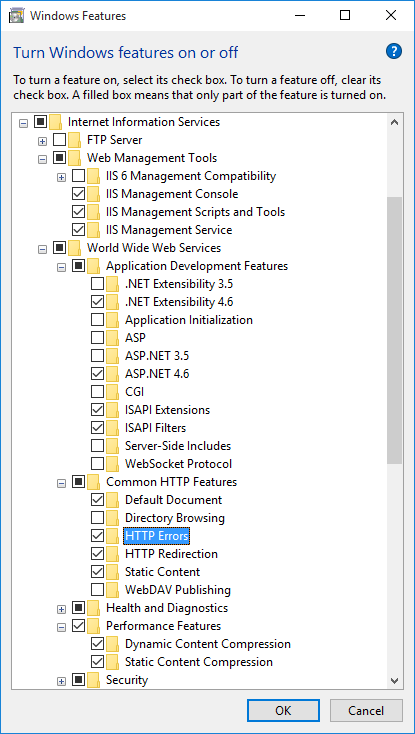 Windows Features screen in Windows 10
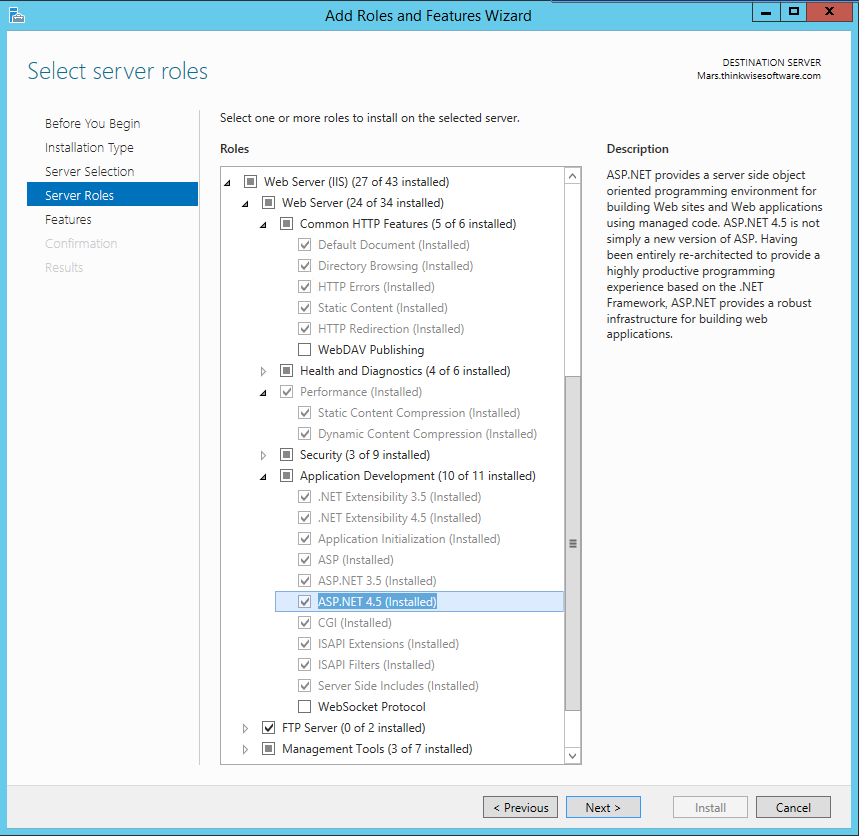 Windows Server 20012R2 features
.NET Framework 4.7
In order to run an ASP.NET application, the .NET Framework 4.7 is needed. Check if this has been installed.
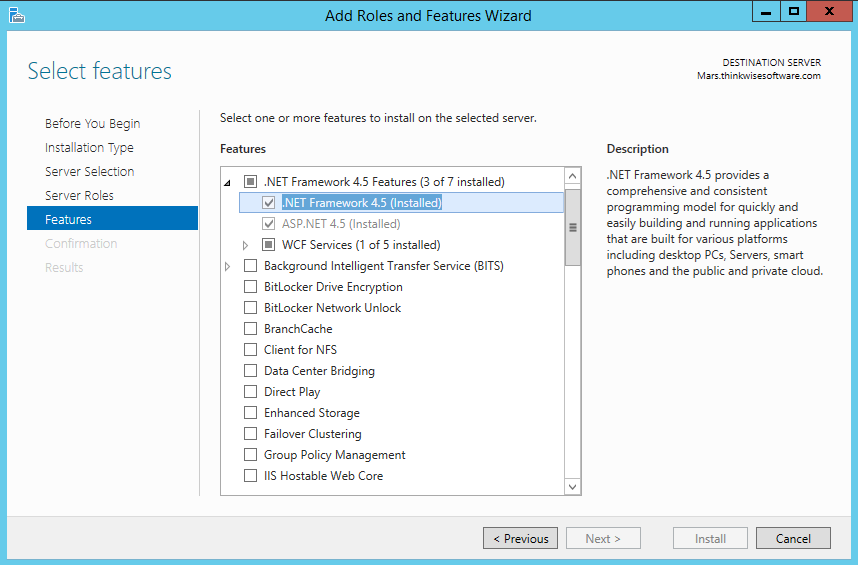 Windows Server 2012R2
Configuration
Application pool
IIS uses Application Pools to run applications and to make configurations for these applications. By using different Application pools, it is ensured that web applications can function separately from each other. It also ensures that they are not in the way of each other if an error arises with one of the web applications due to a crash or memory problems. Thinkwise therefore advises that a new pool is made in IIS for each Thinkwise Web GUI.
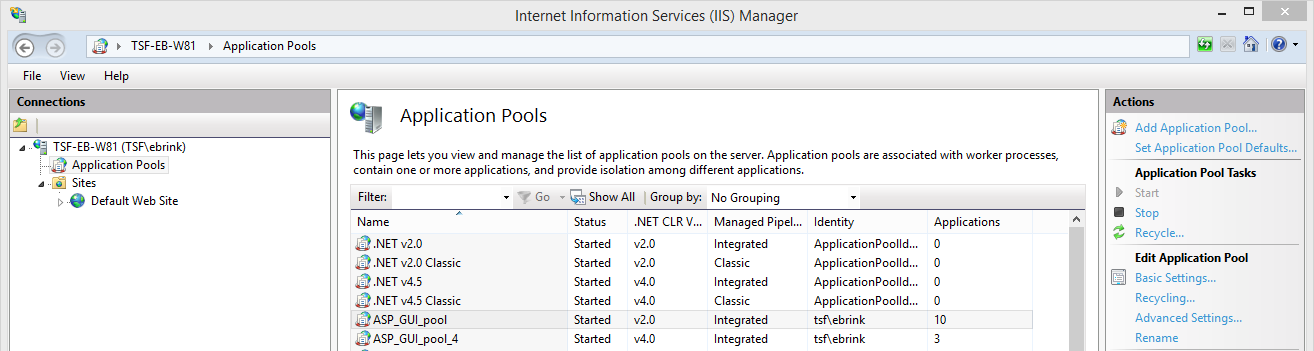 Application Pools
Give the Application Pool a suitable name related to the corresponding application to which this is going to be connected. Subsequently, choose the .NET CLR version for the Application Pool. Version 4.0 is connected to .NET framework 4.7 which is used by Thinkwise applications. The Managed pipeline mode can be set on Integrated.
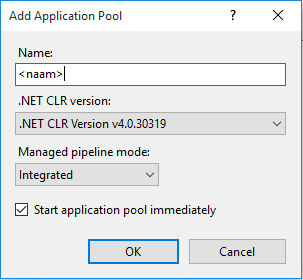 Add Application Pool
Confirm the dialogue in order to create the Application Pool.
The Application Pool Identity is also used to access files in the network. This could include, for example, images and icons that the application uses or report files. To do this, in Advanced Settings > Process Model > Identity a domain user should be specified that has rights to the locations of the used files. If access to the network is not needed, then the default identity suffices.
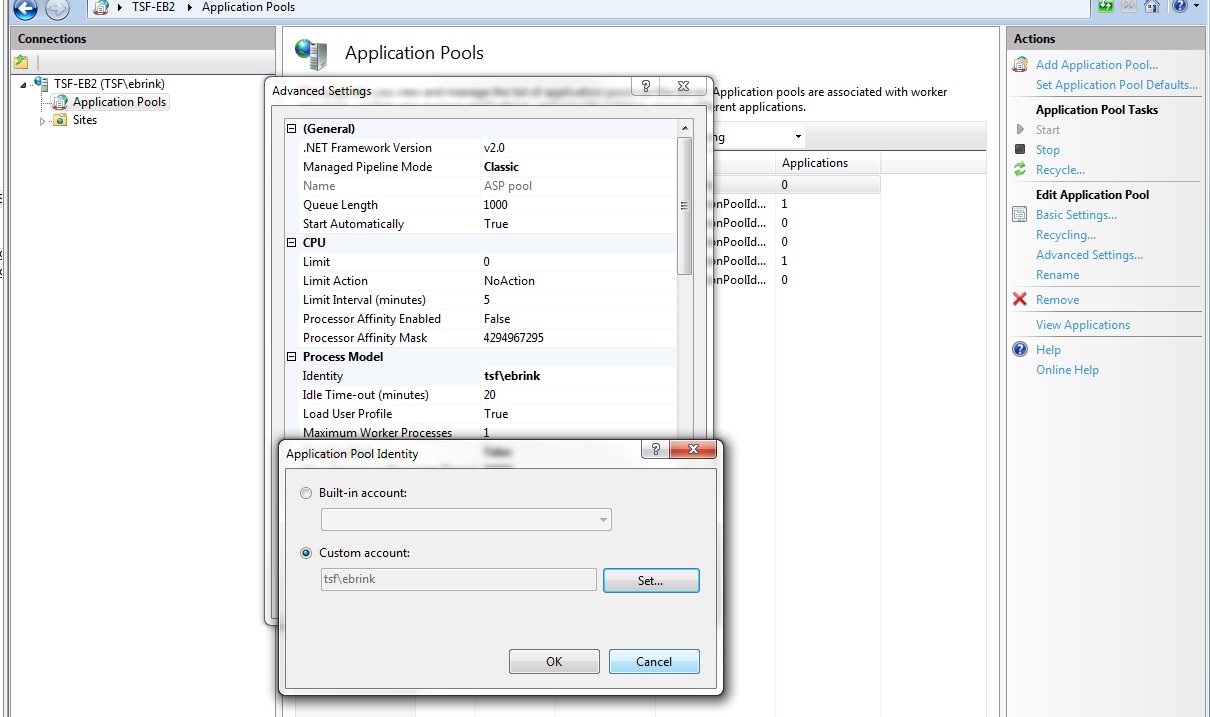 Assign Application Pool Identity
(Re)starting the Application
Restarting the application can be done via the Application Pool overview. Select a pool and click Recycle... in the Actions bar on the right.
Restarting is necessary after the contents of the Application Directory have been changed or if there are problems with the application. After a restart, the application will start up again with a clean slate. Users will lose the session in which they were working and must therefore log in again. Thinkwise therefore recommends preventing this as much as possible in production environments while users work with the application.
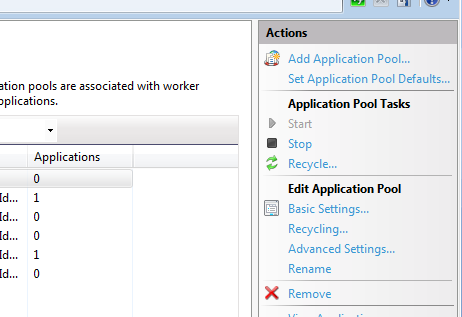 Restarting the Application Pool
Security
After deploying a web application, it is essential to secure the web environment against hackers and malicious intentions. Users' credentials and available data must be safely sent to the client or back to the web server. Furthermore, the application must not be able to be abused by people who have not been granted access to it. This section will describe which options are available to set up the web environment safely and what Thinkwise does in the application to enable users to work safely with the web application.
HTTPS
HTTPS or SSL encryption ensures that all information sent via the internet between the web server and the client is sent encrypted. Therefore, it is not possible to see the sent information during the transport. The information may contain user credentials or data from the database.
More information about HTTPS is available via this link: http://en.WIKIpedia.org/WIKI/HTTP_Secure
Thinkwise strongly recommends to always use HTTPS. An URL Rewrite rule can redirect users from HTTP to HTTPS automatically.
Certificates
HTTPS works with a certificate that is installed on the web server. An HTTPS certificate is connected to the URL with which the application is going to be accessed. If the URL is not yet available, it should first be requested. For external access to the application, a domain name is needed, for example, <www.thinkwisesoftware.com>.
There are various providers of SSL certificates with various options and prices. There is a choice of:
- Type of validation:
- Domain name validation
- Organization validation
- Comprehensive validation
- Type of certificate:
- Single domain name certificate
- Multiple domain names certificate
- Wild card certificate
- Lifespan in years
Please note that the certificate is extended in good time in order to prevent cancellation.
The certificate is linked to the URL with which the user can access the web application. Usually, port 443 of the web environment is used to access the web application through HTTPS.
Connecting the certificate to the URL is done in IIS by right-clicking on the website in which the web application has been placed and choosing Edit Bindings… .
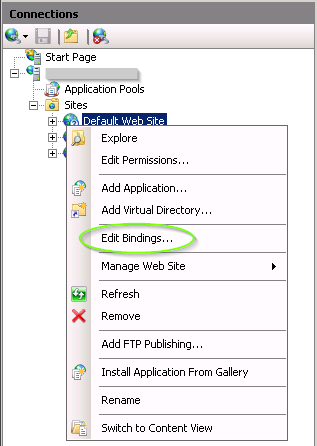 Edit bindings…
Normally, one binding has already been specified for a website. This refers to the HTTP type with the IP Address *.
This is meant to test the application locally on the web server without HTTPS after deployment.
If a binding is changed or added, the dialogue below will appear. In this dialog, the properties of the web application can be specified in order to access this application externally via the internet. At the bottom of this pop-up, the SSL certificate that has just been installed is chosen. Now, the certificate is connected to the web application's URL and the application can be accessed via HTTPS.
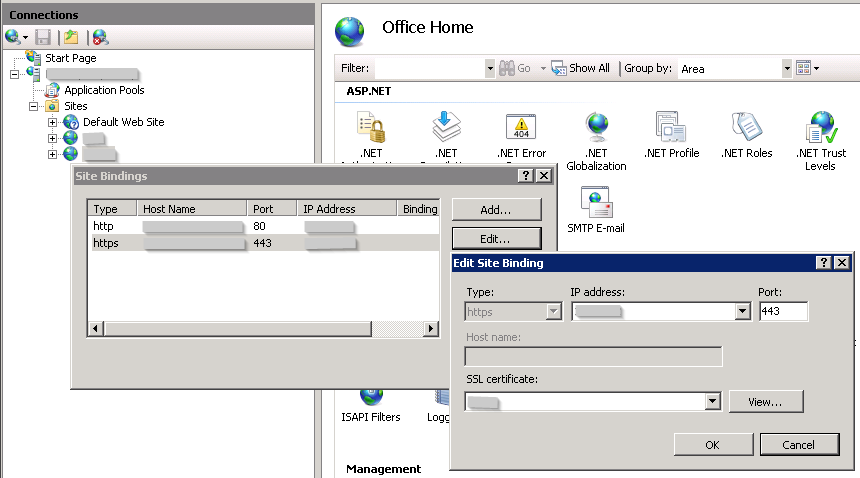 Edit site bindings
Session timeout
When the session timeout has expired which, by default, is at 20 minutes, the user is automatically logged out. The timeout takes effect from the moment that the user stops clicking within the application. The session timeout can be set up in the IIS manager. This is done as follows:
- Choose the correct website where the timeout has to be changed.
- After selecting the website, click on the Session State option.
- After adjusting the time, click on Apply on to implement the new timeout.
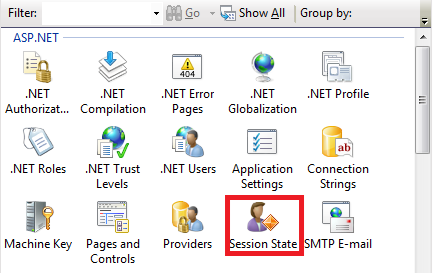
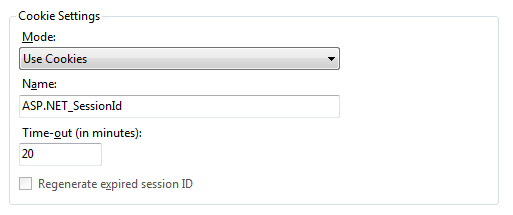 Setting up the session timeout
Performance and tuning
Compression
In order to limit the data traffic and, by extension, improve the performance, we strongly advise that Dynamic Content Compression is turned on in IIS. Less data traffic means that the end user will be able to see the result of the executed action more quickly. This functionality must first be installed before it can be used. This can be done by enabling it in Windows Features.
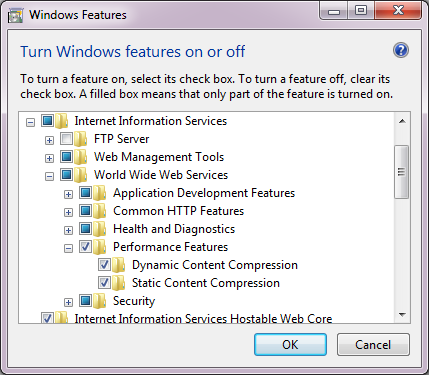 Dynamic Content Compression enabled
After installing the Dynamic Content Compression, the functionality in IIS can be turned on for specific applications.
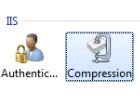
Ensure that both dynamic and static compression are on. Then restart the Application Pool.
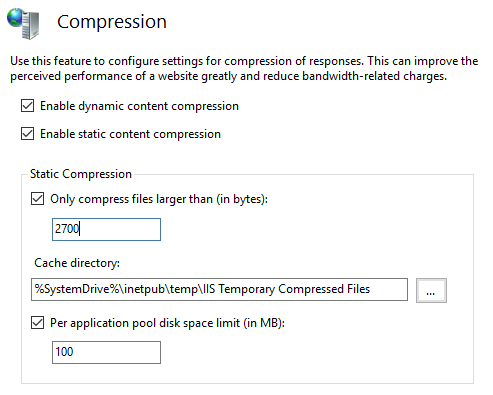 Compression
For Static compression, it can be further specified wat and how much may be compressed. The default settings are sufficient for Thinkwise applications.
Idle time of the Application pool
By default, IIS stops an application pool if it is not used for more than 20 minutes. This Idle time setting can be set on 0 to turn this off. This is especially important for mobile devices with offline data. If the service layer can go off, then the application has lost its memory and thus also its caches.
Thinkwise advises that the Idle time is set on 0 because the first user who accesses the application after this will always have to wait for the application to start up. Depending on the size of the application, this extra waiting time can vary from half a minute to two minutes.
This can be set up on the Application Pool in IIS via Advanced settings > Process model > Idle Time-out.
Automatic Recycling of the Application Pool
By default, IIS recycles an application every 1740 minutes (29 hours) in order to prevent potential problems in the application or server. This means that logged-in users will lose their session and have to log in again. Thinkwise advises that recycling be done at a fixed time, for example, daily or weekly at 03:00.
Why 29 hours? Wade suggested 29 hours for the simple reason that it is the smallest prime number over 24. He wanted a staggered and non-repeating pattern that does not occur more frequently than once per day. In Wade's words:'you don't get a resonate pattern'. The default has been 1740 minutes (29 hours) ever since! (Source: https://weblogs.asp.net/owscott/why-is-the-iis-default-app-pool-recycle-set-to-1740-minutes)
This setting can be configured by clicking on the Application Pool in IIS and then right-clicking on the Recycling button.
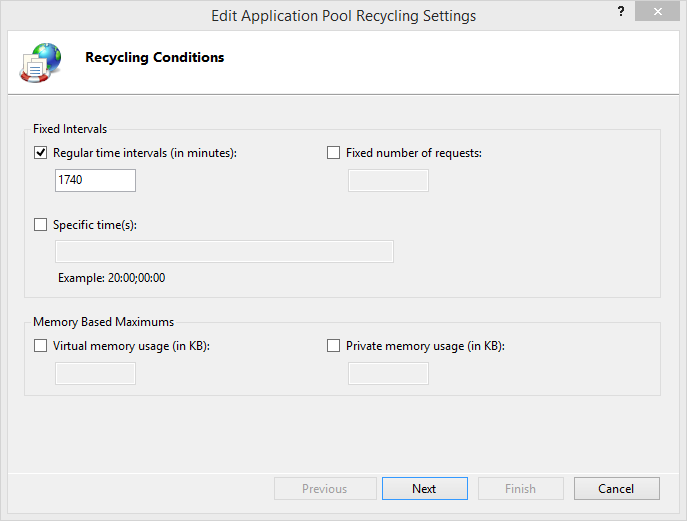 Recycling settings
Application Initialization
After a manual or automatic recycle of the Application Pool, IIS provides various Application Initialization options in order to warm up the application before the first user sends a request. In this way, the first request is just as fast as all other requests. The Application Initialization feature can be enabled through Windows Features.
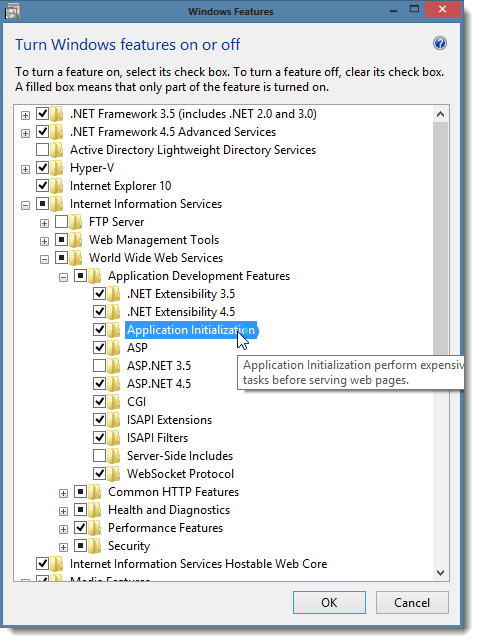 Enable Application Initialization
See http://www.iis.net/learn/get-started/whats-new-in-iis-8/iis-80-application-initialization for more information. Recycle the Application Pool in order to use the changes.
Start mode
On the Application Pool, the Start Mode can be set up on AlwaysRunning instead of OnDemand.
Preload
On the application in IIS, Preload enabled can be set up on True instead of False.
When enabled, a new Application Pool is started after a recycle and, when this is done, the old pool is stopped. In this way, active users do not need to wait for very long before they can continue. Via Windows' Task manager, what happens to the application pools during a restart process can be seen by keeping an eye on the w3wp.exe processes.
Troubleshooting
Errors that have occurred can be found in the Windows Event Viewer in Windows Logs > Application.