
Functionality
Using the Functionality screen, you can develop and test the business logic of the application that cannot be modeled. This business logic not only comprises traditional business rules but also the logic to control the user interfaces, process flows and messages.
The functionality screen consists of six components:
Control procedures - The definition of the business logic.
Template - Templates contain the actual source code for the business logic.
Assigning - For statically assigned business logic, the template can be assigned to the various program objects. Parameter values can be specified for every assignment.
Result - This is where the program objects, which make use of the template, are (re)generated and can be applied. You can also perform a static code analysis of the generated program objects.
Unit tests - The place to create, maintain and run unit tests. See unit tests
Process tests - Here you can create test cases for your business logic. See test cases.
Validation - This tab shows any validation messages regarding the selected business logic.
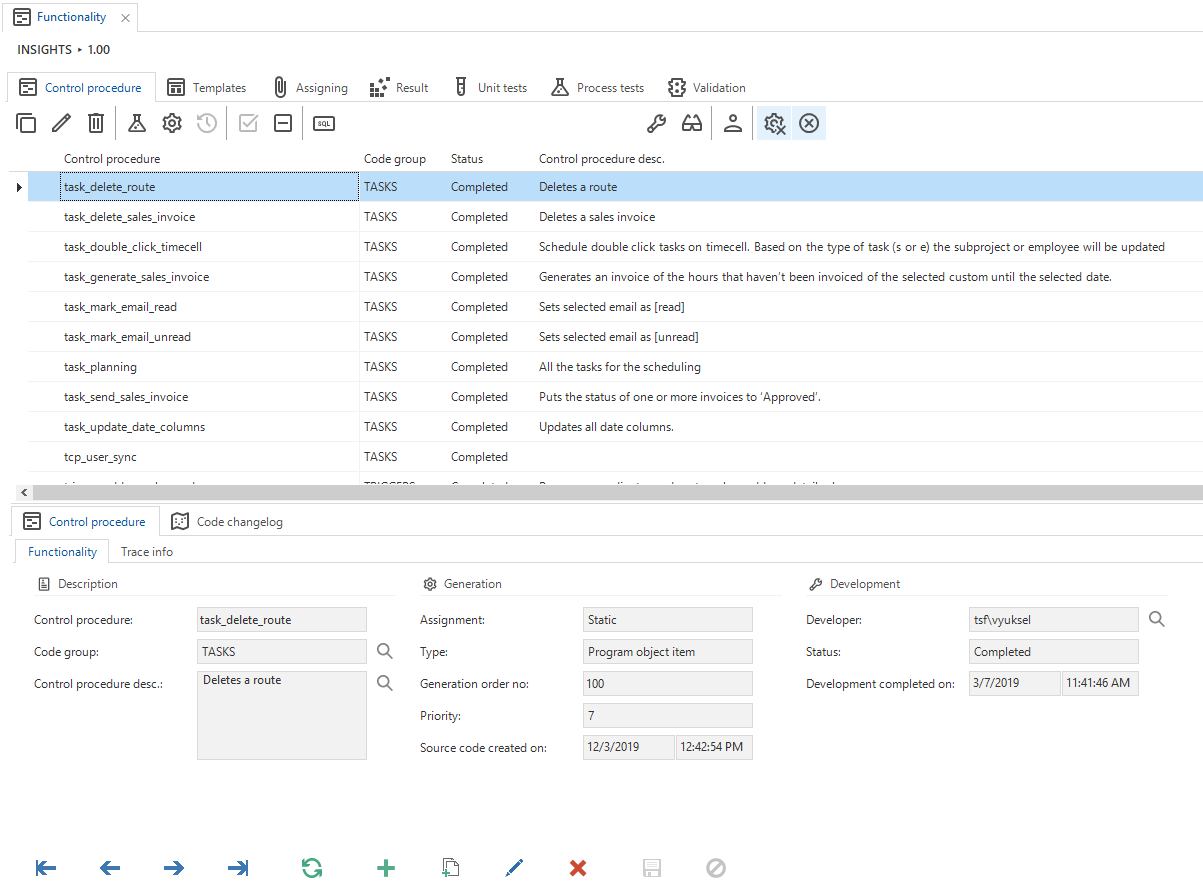 Functionality
Definitions
Control procedures
A control procedure is a placeholder for a specific piece of business logic. The control procedure describes the business logic, defines where and how it is applied, and shows the development, test and review status of the functionality.
Templates
Functionality is written in the form of code templates, based on the functional description which has been drawn up when modeling the application logic. A control procedure always contains one or more templates.
The code in templates with which the application logic is developed is dependent on the platform that the end product uses. The information available when performing the logic (the context), and the possibilities for each logic concept are almost identical for each platform.
Some points of attention:
- The code groups are often identical to the logic concepts as discussed in this manual. However, it may occur that certain logic concepts are included in different code groups.
- Examples have been worked out in this chapter, in which the end product makes use of a platform that supports Transaction SQL. The way in which the execution context is read out and in which the values are set may differ on the various platforms. However, the information that contains the execution context and the possibilities for the application of logic are practically the same for each platform.
Program objects and items
Every logic concept results in one or more program objects in the end product, which are generated by the Software Factory. When using Transact SQL for your business logic, these program objects result in stored procedures (for most concepts) and triggers (for events) on the database, which are executed by the application tier and user interfaces.
A program object contains one or more program object items. The header and footer items are provided by the Software Factory. The items containing business logic correspond to the custom code templates.
A program object for the project table default concept will look like this:
/* Header, generated by the Software Factory */

create procedure def_project
(
   @default_mode       tinyint,             /* 0 = add, 1 = update */
   @import_mode        tinyint,             /* 0 = regular, 1 = import */
   @cursor_from_col_id varchar(255),        /* trigger column */
   @cursor_to_col_id   varchar(255) output, /* focus column */

   /* column values */
   @project_id         project_id output,
   @project_desc       description output,
   @finished           no_yes output,
   @finished_date      date output,
   @insert_user        user_name output,
   @insert_date_time   date_time output,
   @update_user        user_name output,
   @update_date_time   date_time output
)
as
begin

  /* Business logic to fill finished date when finished is checked */

  if @finished = 1 and @finished_date is null
  begin
    set @finished_date = getdate();
  end

  /* Business logic to fill trace columns */

  if @default_mode = 0 /* New record */
  begin
    set @insert_user = dbo.tsf_user();
    set @insert_date_time = getdate();
  end

  set @update_user = dbo.tsf_user();
  set update_date_time = getdate();

/* Footer, generated by the Software Factory */

end
Adding functionality
The step-by-step plan for creating functionality is discussed in the following paragraphs.
1. Create a control procedure
A new control procedure can be created under the Control procedure tab. It is subsequently indicated how this procedure should be assigned: static or via SQL.
Thinkwise recommends entering the name of the developer when creating a control procedure so that if there are any questions about the development, the right developer will always be easily accessible. The developer tests their own template and sets it to complete when it is complete. Since a developer only works on one template at a time, each developer only has one template at the most under development. The exception is a group of templates that form a logical unit. The review checkmark is subsequently checked by the project manager. They determine who tests which templates.
2. Add a template
Most procedures have one template for weaving. Hence, the template ID and description can be copied as default from the control procedure. The sequence number determines the default sequence of the program objects. These can still be changed for each program object at a later date.
The source code is subsequently defined in the Code tab of the form.
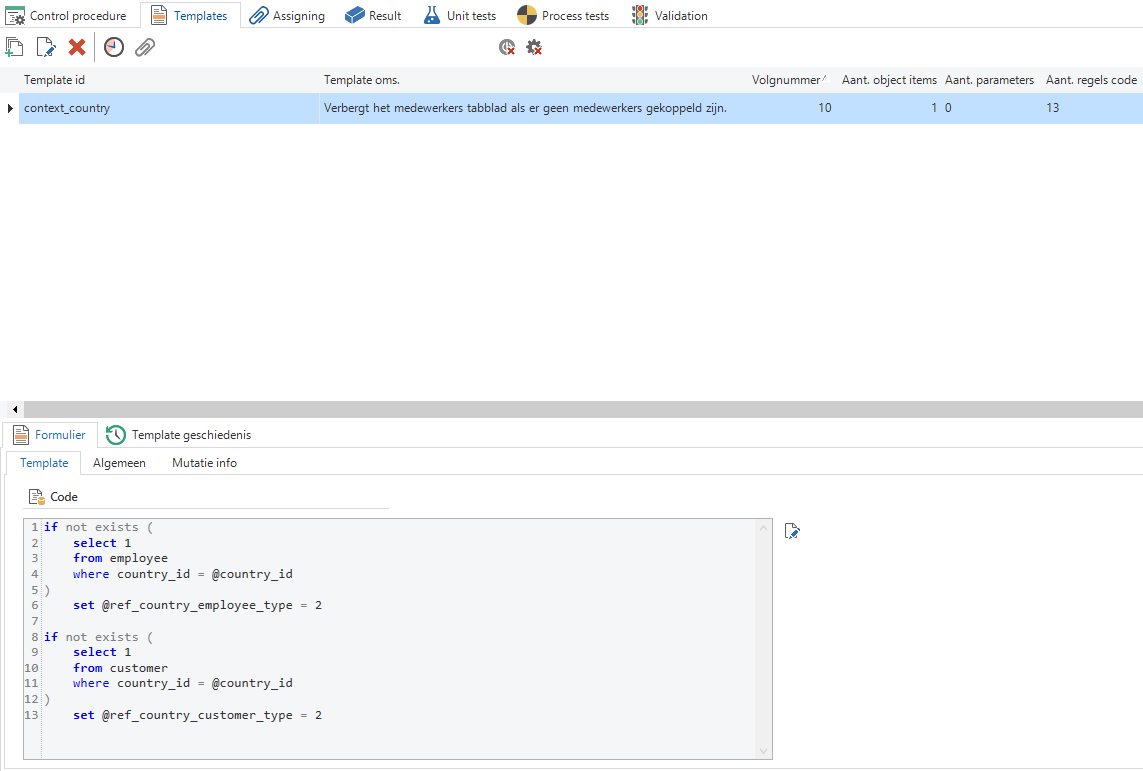 Adding code to the Template tab
The code can be written directly in the Template tab and will be displayed as is usual with an editor such as Notepad++ or SQL Server Management Studio. If the preference is to work directly in the editor itself, you can click on the button next to the code template. A linked editor will open. Changes to the file are automatically reported back to the Software Factory.
When the control procedures or templates are modified, the history is stored in the Software Factory. Several tasks are available to compare these templates and control procedures with the history.
It is also recorded when a template is modified and when the source code was last generated. After the development is finished, the control procedure should receive the status Completed. This is done by calling the Complete control procedure task. It must be indicated in the pop-up what must be included in the change log.
If subsequently a modification is made to the template or the control procedure, the control procedure will automatically revert back to the status of Development.
Parameters
A template can have parameters. These are placed in square brackets (e.g., [COL_ID]). When assigning a template to a program object, the parameter is provided with one or more values. If a parameter has more than one value, the line of code containing the parameter will be repeated as many times as there are values.
if @[col_1] = 1 /* checkbox is checked */
begin
  set @[col_2]_mand = 1 /* mandatory */
end
else
begin
  set @[col_2]_type = 2 /* hidden */
end
A parameter value can also be empty and by checking the Ignore if empty check box for the parameter, it can be determined that the source code line, containing the parameter, is not included in the end product.
To retrieve the username of the current application user, the Software Factory provides the
tsf_user()function.This method is not supported by Crystal Reports/Crystal Clear, however. In this case the username has to be provided to the report by means of a parameter, filled using a default that uses the
tsf_user()function.
3. Assign the template
Templates can be assigned to one or more logic concepts in the Assigning tab page. The left column shows all the program objects available for the selected concept. After selecting a program object, the contents of the program object (program object items) are displayed on the bottom right. By using the arrow down button, the template can be woven into the program object.

Logic concepts can be disabled through the settings found in tables, tasks, reports and process actions. This applies for default, layout, context and process program objects.
Disabled concepts are displayed in italics. No code is generated for disabled logic concepts and they are not used in the end product. When assigning a template to a disabled concept, this concept will be automatically enabled.
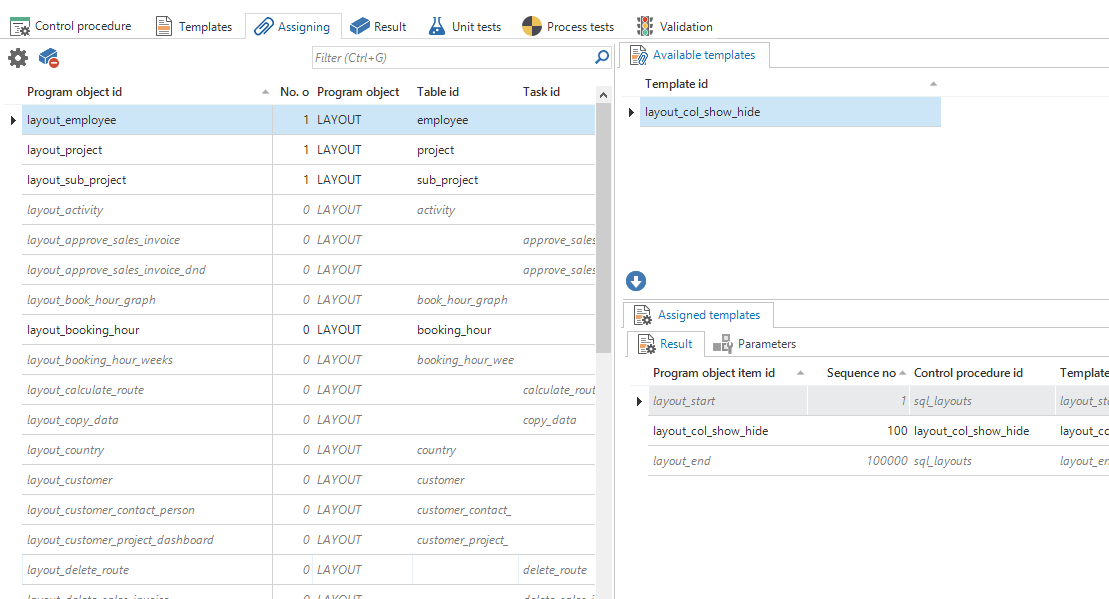 Assigning control procedure templates
A template can be assigned to the same program object item more than once. To do this, the program object item ID of the existing assignment first has to be modified. This can be done in the list of program object items. Also, the sequence of the templates can be changed here by changing the sequence number.
If a template has parameters, these are automatically created on the Parameters tab. An icon on the tab indicates that there are still parameters without a value. If these are not automatically generated, they can still be generated with the Generate parameters task.
 Parameter values required
When editing templates with an external editor, selecting a different template will disconnect the temporary file that is created from the Software Factory and add the message
This file is disconnectedto the top of the file. Trying to import template code containing this message will display an error:
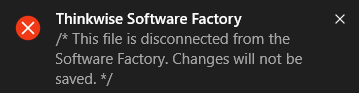
4. Apply the functionality
If a new template has been woven or the template source code has been changed, then the source code of the program objects have to be regenerated. This can be done by clicking on the Generate code button in the Result tab page.
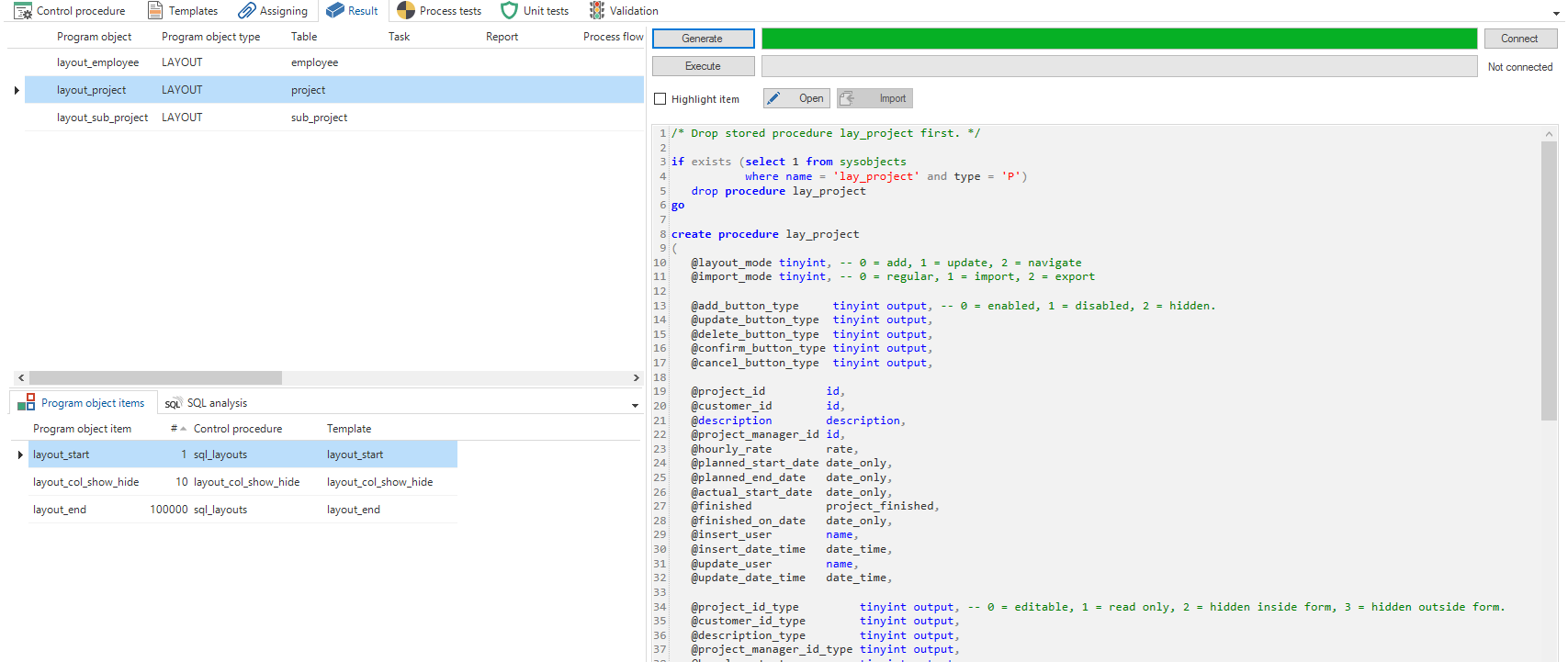 Result tab page
The generated program objects can subsequently be deployed to the database by clicking the Execute button.
The generated source code that corresponds with the program object item can be marked with the option Mark item. In this way, it is clear which part of the source code is generated by which program object item (and hence which template).
Using the Open and Import buttons, it is easy to modify an assigned template using an external editor and importing the changes afterwards. The advantage of editing generated program objects instead of code templates is that the program object body and parameters are available in the code.
When importing a modified program object, a pop-up dialog clearly shows the changes.
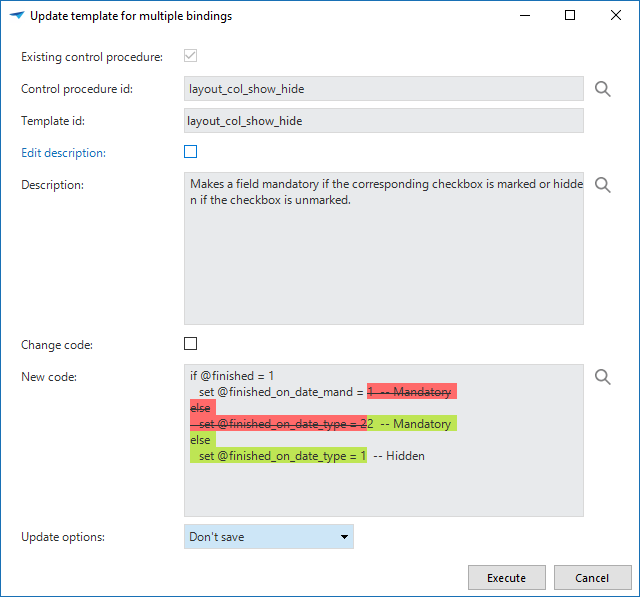 Import a program object
After clicking Execute, the Software Factory will parse the program object and update the modified templates automatically.
5. Complete the control procedure
After creating or modifying business logic, the control procedure can be marked for review using the Ready for review task.
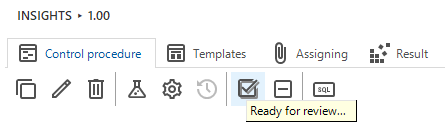 Ready for review task
This will set the status of the control procedure to Review and create a changelog record. The code changelogs, including the code changes, can be found in the Code changelog tab page.
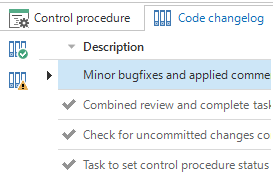
The control procedure will show up in the Code review screen, ready to be reviewed.