
Data model
The data model screen allows you to visually design the data model of your application. A data model consists of tables, containing columns, and references, to create relations between tables.
Rows (records) can be stored in a table. Each row consists of fields (columns). Views can also be included in a data model along with physical tables. A view gives a runtime presentation of data from one or more tables in one concentrated overview and is therefore always up-to-date. There are no rows stored in a view. It is also possible to create a Snapshot . In a snapshot, just as in a view, data from one or more tables can be combined, though in a snapshot this data is actually saved. This can considerably improve performance. The RDBMS has provisions to easily refresh the data in a snapshot (sometimes even automatically).
A reference is a relation between tables. The integrity between these tables is automatically guaranteed on the basis of a column comparison. A reference consists of a target and source table. The source table is the lookup table.
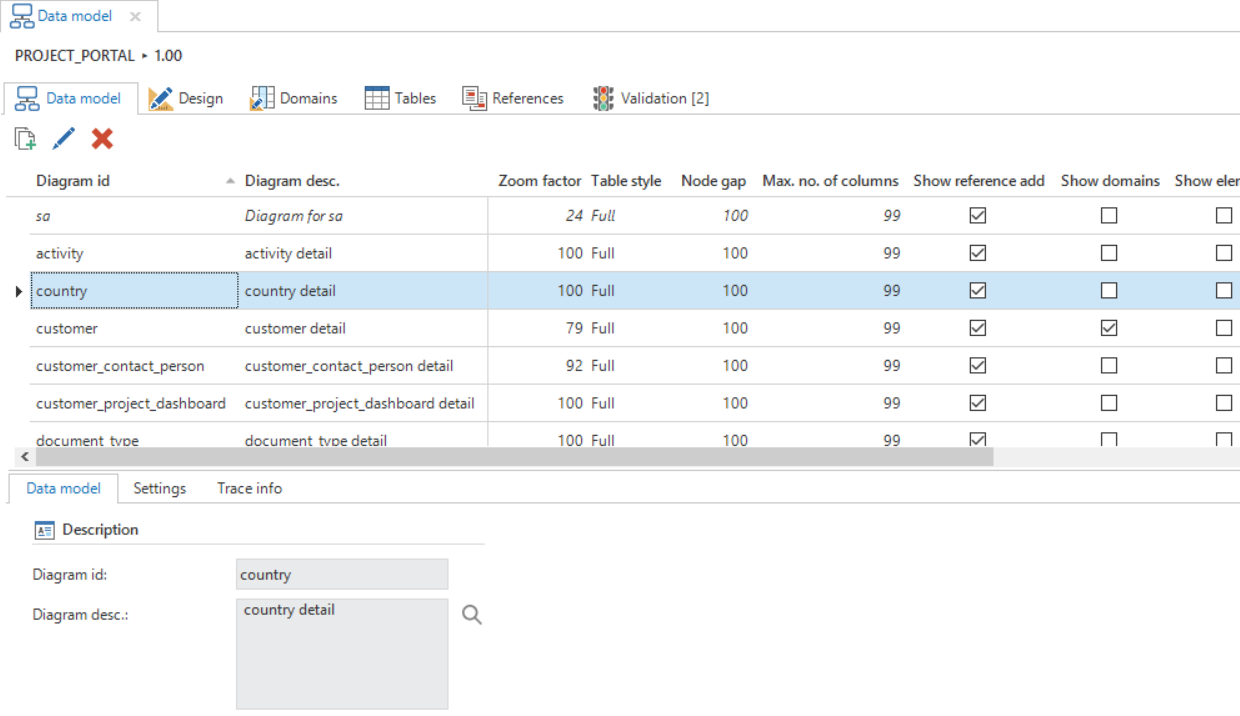 The Data model screen
Diagrams
Since a data model can consist of many tables with columns, an overview can quickly become very unclear. To avoid this, it is possible to produce several diagrams each describing a subset of the complete model. A task is available to produce one's own diagram. This diagram is always at the top of the list of diagrams and can only be used by the user who is logged in. This prevents two developers getting in each other's way when designing.
Design
Diagrams, and therefore the data model, can be designed graphically via the Design tab
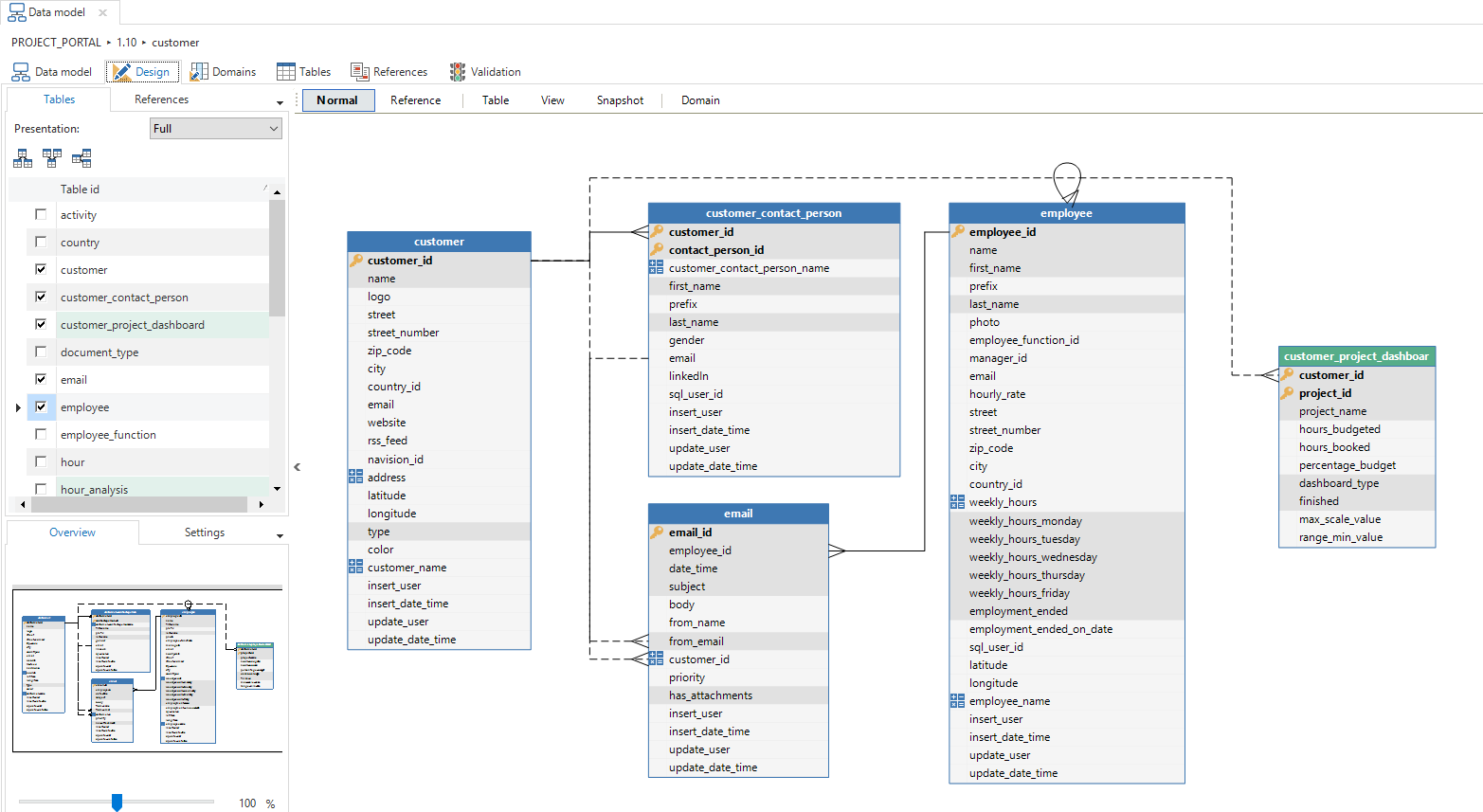 Tables and views in the Design tab page
This screen has a number of functions that help when designing the data model. A list is visible in the left hand column with all the tables and views. Besides this, there is a similar list with all the references. These can be checked and unchecked to use them within the diagram.
Under this list, there is an overview of the diagram and there are a number of standard parameters that can be modified.
Tasks are available above the tables to automatically add extra levels or link tables to the diagram.
The One level deeper and One level higher tasks select all linked tables above or below the selected table. This allows fast development of a diagram, which displays linked tables.
The Link table task automatically creates a link table between two tables. It can be indicated in the pop-up which table is the main table and which is the subordinate.
To create a link table between two tables, both tables have to have a primary key
Diagram options
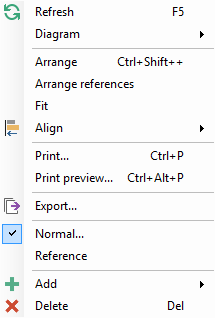
The context menu (right-hand mouse button in the work sheet) offers the following options:
Refresh - re-load the data model, for instance, to see modifications from other designers.
Diagram - has a sub-menu to save, load and rename diagrams.
Arranging - produces a graphical display by manually positioning the tables yourself. The distance is determined through an option in Settings.
Arrange references - leave the tables alone, but position the references so that they do not run through the tables.
Fit to screen - remove the white edges around the data model.
Align - has a sub-menu to align selected objects in various directions.
Print - the data model is printed on the standard printer.
Print preview - displays a print preview.
Export - has a sub-menu to export the graphical data model to various formats such as GIF, PNG, PDF, etc.
Normal/Reference - switch between Normal and References. If References is selected, it is possible to draw references between columns.
Add - a table or reference can be directly added to the model.
Delete - delete a table or reference from the diagram and/or model. With delete table, the table is not deleted but only removed from the data model. With delete reference, there is a choice between removing the reference just from the diagram or also from the model.
Adding new domains, tables and views is available in the tabs behind the subject field but can also be easily done via the buttons in the diagram.

Tables
An overview of all tables is accessible via the Tables tab page.
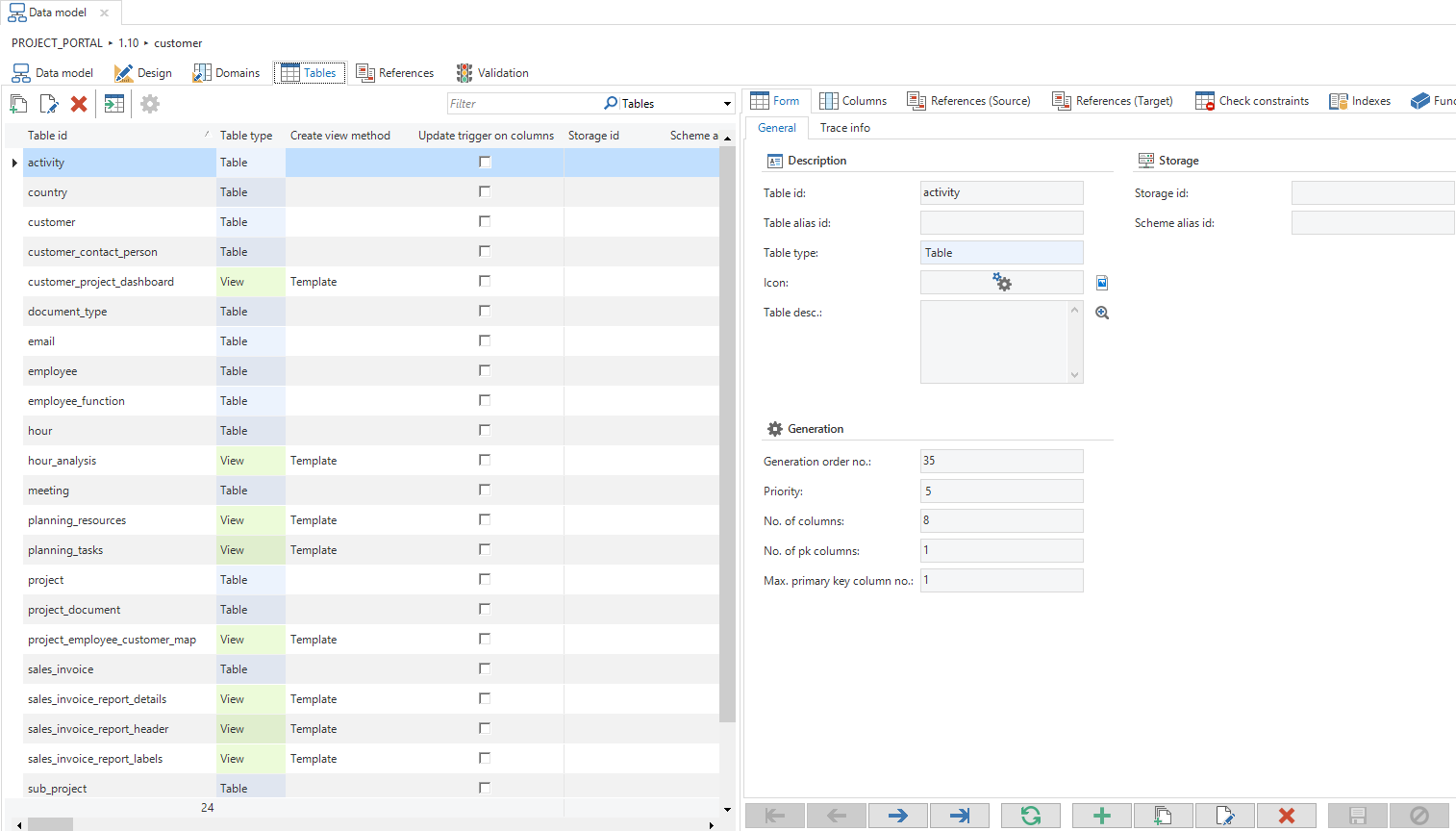 Overview of the 'Tables' tab
The columns are defined within a table under the columns tab. A column has the following properties:
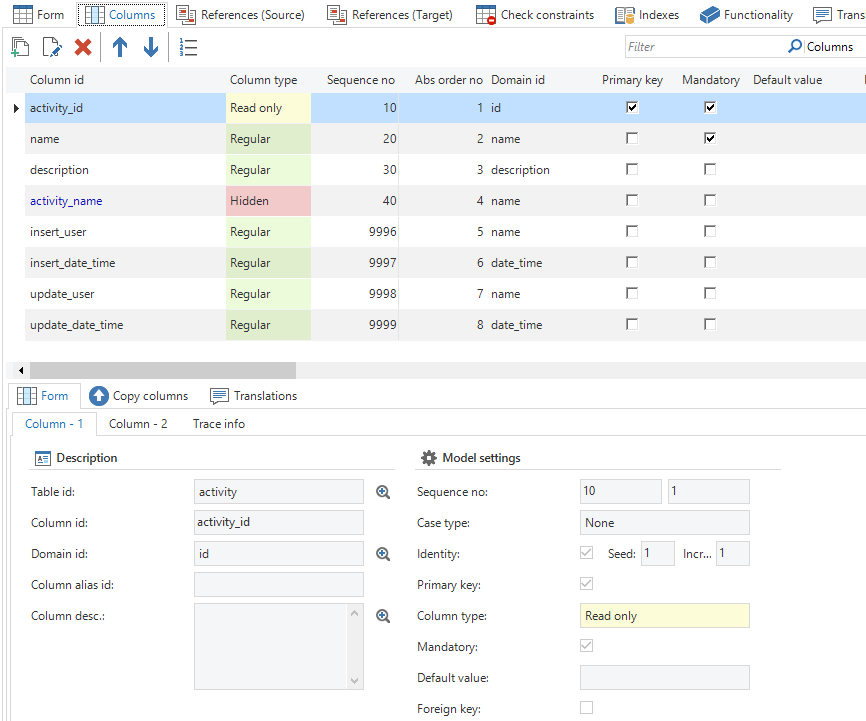 Columns tab page
General
- Project ID - of the current project.
- Version ID - of the current project version.
- Table ID - the table within which the column is created.
Description
Column ID - the column name in the database.
Domain ID - determines the data type and control of the field.
Column alias ID - a column alias can be optionally added here.
Column description - a description of the column can be optionally placed here.
Model settings
Sequence number - determines the physical sequence in the database.
Case type - determines whether this field is only filled with upper case letters, lower case letters or a combination of both.
Identity - the database will automatically issue a number for this field.
Seed - begin value of the number.
Increment - steps with which the number is increased.
Primary key - indicates whether the field is part of the primary key.
Type of column - determines how the column is displayed (Normal / Read only / Hidden).
Mandatory - determines whether a field is mandatory or optional.
Default value - fixed value that is filled in when adding a record, with a change this value is not filled in.
Foreign key - indicates whether a field is a foreign key from another table.
Calculated field
Type of calculation - indicates with which calculation the field is filled. A choice can be made from:
None - the user enters a value himself
Expression - the GUI executes the calculations. This is not stored in the database. The column itself is also not stored in the database.
Calculated column - the database executes the calculation and stores this in the table.
Calculated column (function) - the database executes the calculation with the help of a function.
Calculated field query - in which a query can be specified to have a value in this field calculated by the GUI or database, for instance t1.price * t1.quantity. This value is not stored in the database.
Expression dependencies
It is possible in the Software Factory to define virtual fields that are not stored in the database but are evaluated by the user interfaces. This type of field is called an expression field. For these expression fields, that are sometimes also called look-up info fields, no upgrade of the end product is necessary.
Example
A person can be displayed as first name + prefix + surname. This name is composed and therefore does not have to be stored in the database but is often used in the GUI.
With calculated fields, a query has to be provided with which the value is retrieved by the user interface. For instance, this can be a composition of several fields, a (range) function or a subquery. Reference can be made in the query to other fields from the table by using the alias t1.
The query that is provided with expression fields will be added to the select clause of the query. For example:
select
t1.[customer_id],
t1.[customer_naam],
(  select t1.street + ' ' + t1.number_number + ', ' + c.name
   from country c
   where c.country_id = t1.country_id
) as t1.[address]
from customer t1
The columns on which the expression is dependent are shown on the Expression dependencies tab. If one of these columns changes in the end application, then the expression field will also be updated. If, for instance, street changes, then the composite address has to use the new street.
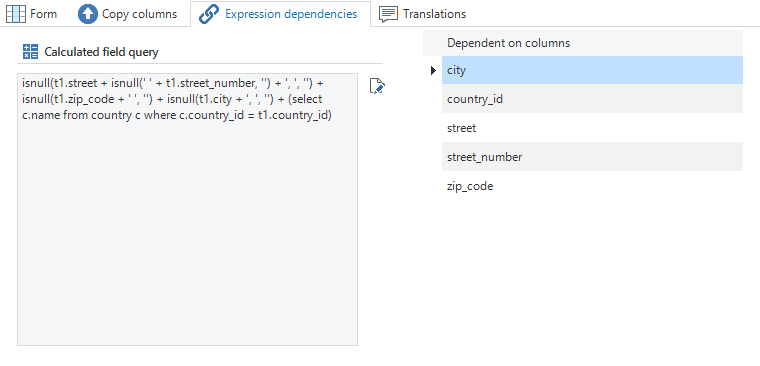 Calculated field with a Query
Indexes
The Software Factory automatically creates indexes for foreign keys and sort sequences. To optimize performance, it might be necessary to add additional indexes to a table. Indexes can be created in the Indexes tab page.
The Thinkwise platform supports clustered and non-clustered indexes, full-text indexes (SQL Server) and Encoded Vector indexes (DB2). It can also be indicated whether an index has to be unique.
Views
A view is a logical table that is composed from fields from other tables. The data in a view is not stored in the database but composed at runtime on the basis of a query.
A view is created in the same manner as a table and has a number of additional options. One of these options is the choice in which way the view has to be created. There are three options available for this.
Automatic
This method is used when only data from the linked (source) tables need to be used in the view.
The from clause is created automatically. This is generated, but it can also be forced by executing the Generate view from clause task.
Modifiable
Use this method to be able to modify the from clause, where clause, group by clause or having clause of the view. The select clause is built up on the basis of the view table and view column fields in the columns.
Template
The last option provides the possibility to write a template in which the entire select query is written, which then needs to be woven into the view.
The Template option provides the freedom to use the most complex selection structures or to construct them dynamically. Creating this template is explained in paragraph 0.
Copy columns
All columns are available for copying to the created view in the copy columns tab. The selected columns are copied to the view using the Copy button.
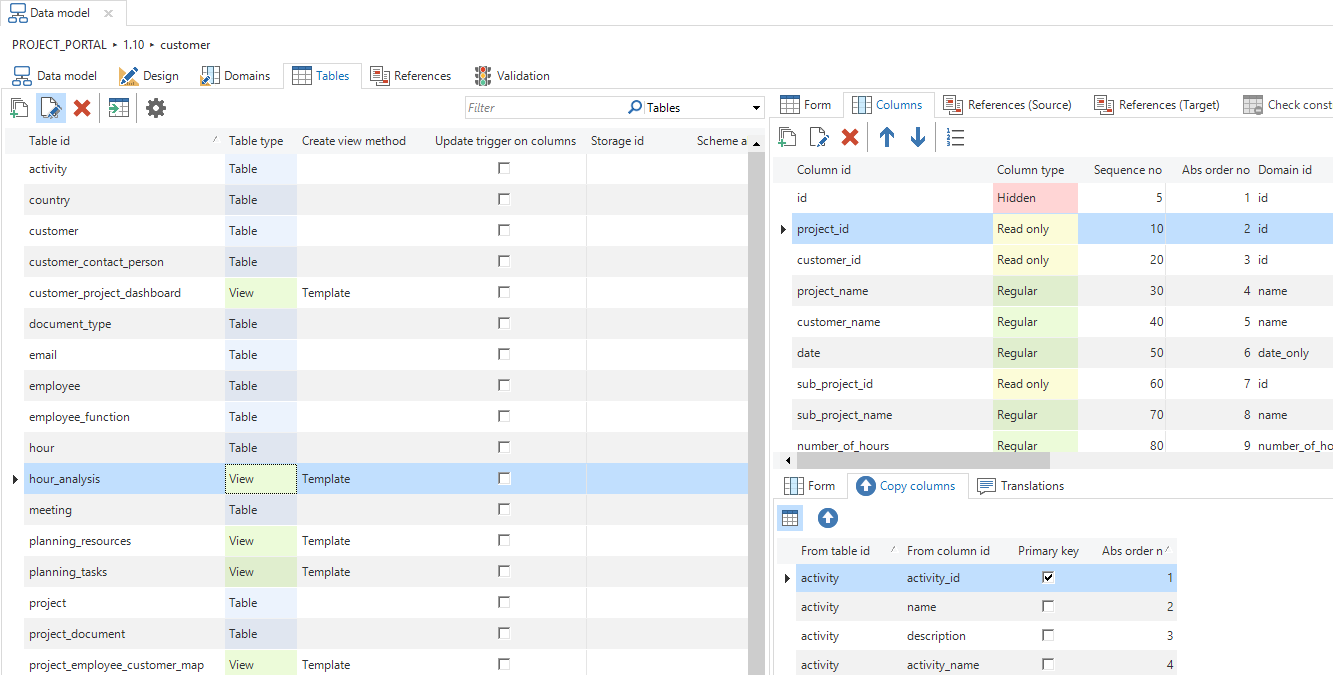 A view with the option to copy columns
When this takes place, a pop-up screen appears with the option to enter a prefix. This prefix is placed before the name of the copied column. For example, the name column can be copied from the employee table with the prefix employee. Name is now displayed in the view as employee_name. When the column name starts with the prefix, then the prefix is not added for a second time.
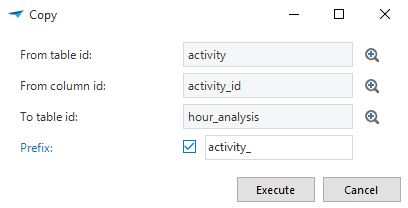 Pop-up that appears when tables are copied
After all columns are defined and/or copied and Automatic or Modifiable is chosen for the view option, then the from clause of the view can be constructed by executing the Generate view from clause task.
References
A reference is a relation between two tables. The target table has one or more fields (the foreign key) of which the combined values have to appear as the primary key in the source table. This column comparison is specified in the reference columns.
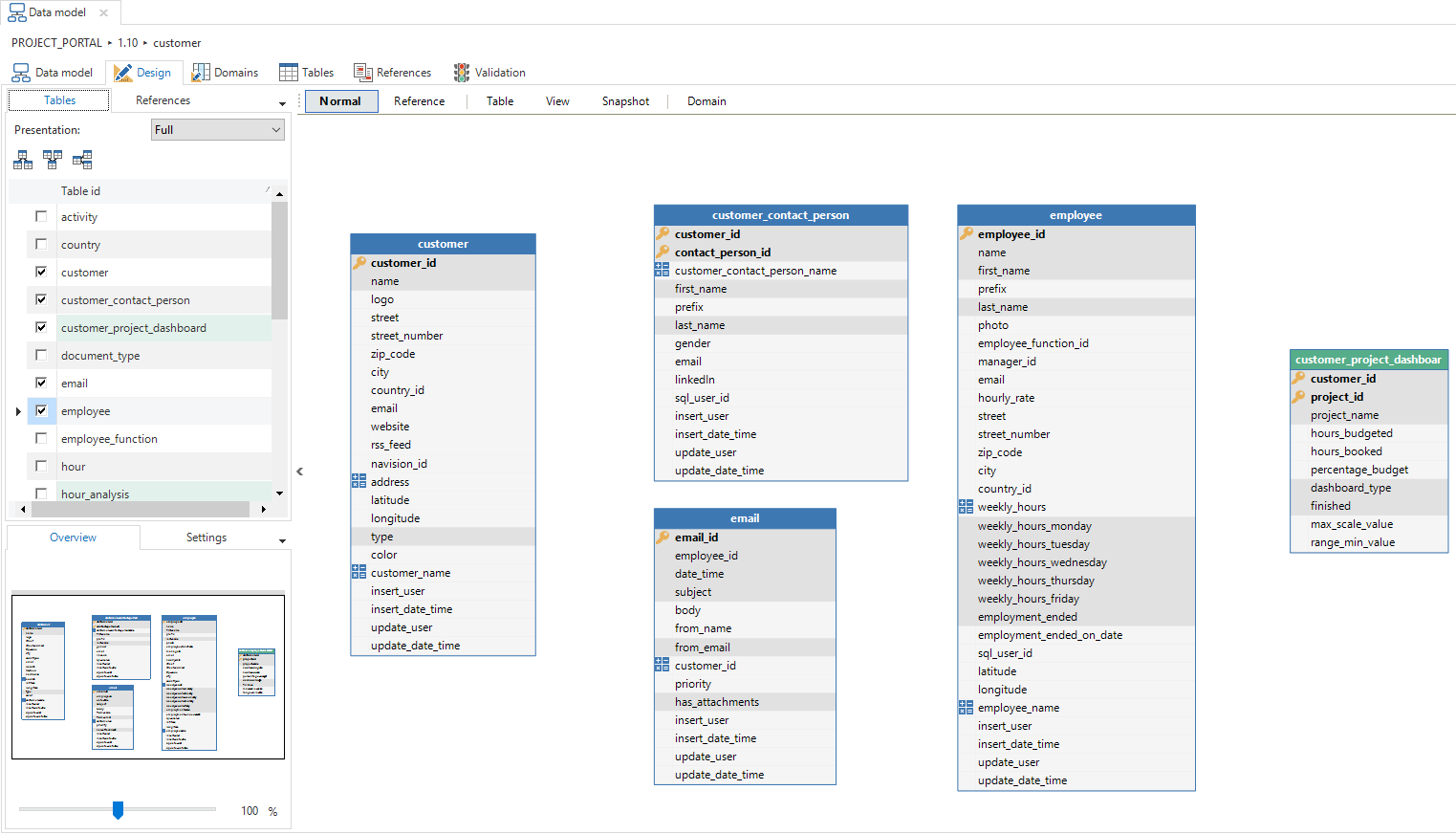 Tables and views
References can be created by means of drag & drop in the Reference status. In the Normal status, the Reference status can be temporarily activated by holding down the Ctrl key. This makes it possible to create a reference by dragging with the mouse from the source to the target table. A pop-up then appears in which the column comparison is presented.
The column comparison is based on the primary key of the source table, which therefore has to be present. If a column from the source table does not appear in the target table, then a checkmark will appear in front of the column to indicate that this column will be created. This checkmark can be unchecked whereupon an existing column from the target table has to be chosen. Only columns that have the same domain as the column in the source table can be linked.
When adding or modifying a reference, it can also be indicated whether the reference has to be used as detail and/or as look-up.
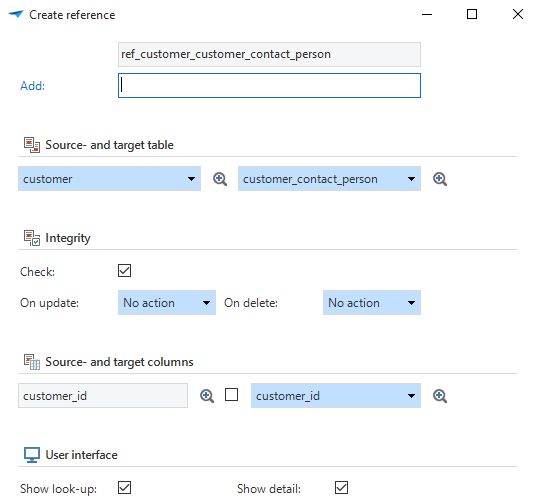 Pop-up for creating references
It is possible to switch off the integrity check of the reference by the RDBMS by unchecking the checkmark next to Check integrity. The reference then only serves to display details or look-ups in the user interfaces.
Incidentally, just the integrity between tables can be checked. When the source or target table is a view, the Check integrity option is turned off as a default.
Validation
Validating the data model is possible in the Validation tab. Through this, errors can already be identified at an early stage. The Validation component is explained in more detail here.
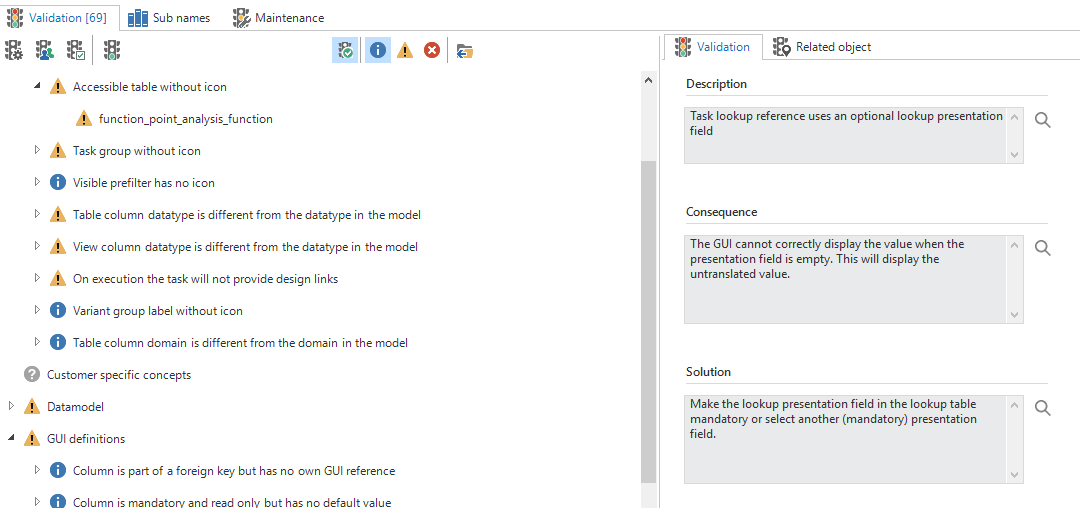 Example of the validation screen
Starting the application
When the data model is completed, the database can be created. This is described in Creation. Since there is still no user interface set up, there is nothing visible in the end product. The tables are accessible after the menu has been set up.
Starting the user interface is possible once the database has been created or by using the Mock Database Provider to display a preview without an end product database.