
Branching and merging
When several developers or teams work on different features of an application, branches of a project version can be made for these features via the Project overview screen. Each feature can be further developed separately and, as soon as a feature is completed, it can be combined (merged) with the main project version (trunk) via the Merging screen. This way, a new feature can be developed and tested entirely independently from the rest of the project.
Creating a branch
A branch can be created in the Project overview screen using the  Create Branch task.
This task opens the following pop-up.
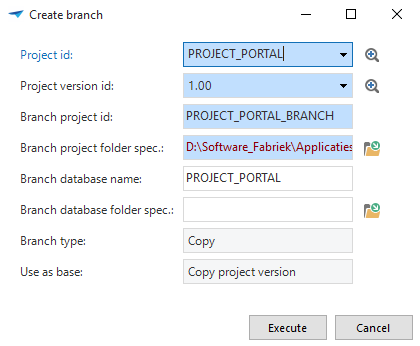 Pop-up for creating a branch
It must be indicated for which project and project version a branch has to be created. The name of the branch project can then be entered and a location selected for the project and the database.
When the branch is created, it can be developed like a regular project. To do this, select the correct project and the associated project version on the project screen.
Base versions
When creating a branch, a base project version is automatically created. This base version is prefixed with the project version of the trunk. For instance, 1.10_BASE to indicate on the basis of which version it has been created.
Creating a merge session
As soon as the branch project is satisfactorily completed and tested, it can be combined again with the trunk. This can be done in the Merging screen. A merge can be started with the help of the Start merge session task.
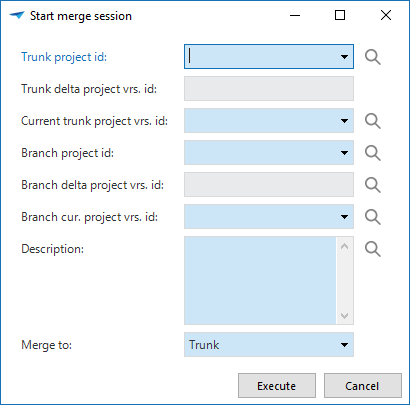 Pop-up for starting a Merge session
Select the trunk and branch project version to merge. Any conflicts are identified so that a solution strategy can be defined in the following step. In this situation, only a comparison is made. Because no modifications have yet taken place, the user can always go back to the previous step.
As long as a merge session is not completed, the indication merging will be added to the project version to indicate that a merge session is running. Modifications in a project version with the status merging may be lost when the merge session is carried out.
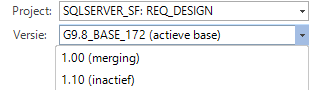 Merging indicator with project version
It is also possible to merge modifications from the trunk into a branch. It can then first be tested whether the new version works correctly, before the trunk is updated.
Conflicts
Conflicts are presented in the Conflicts tab. When the merge session is started, three kinds of conflicts can occur.
Static conflicts
Static conflicts only occur when the branch is started with an empty project or a (sub) application, and an object is created in the branch which already exists in the trunk.
Dynamic direct conflicts
This type of conflict occurs when there is a double insert or update, or when a delete on one branch and an update on another branch are carried out, such as deleting a table compared to adding columns to this table.
Dynamic indirect conflicts
This type of conflict occurs if a delete in the trunk and an insert or update in the branch takes place at the reference level.
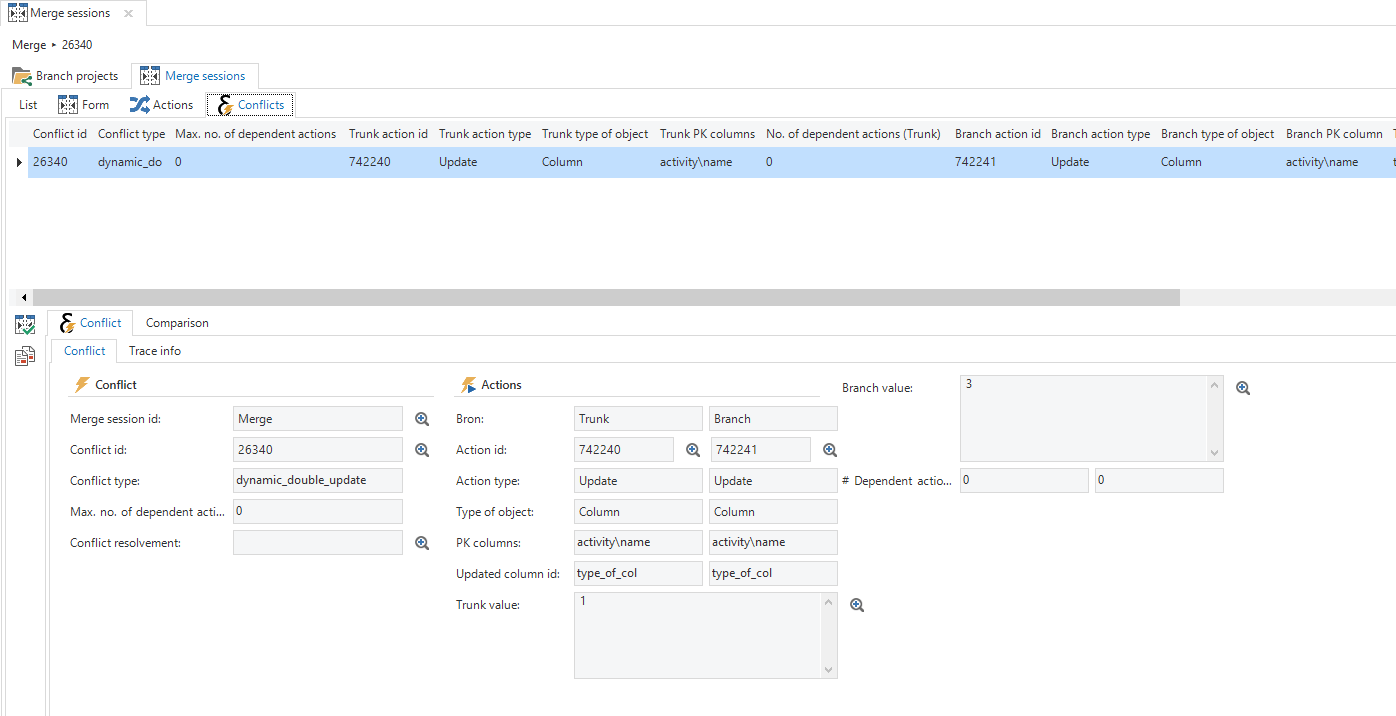 Overview of the conflicts
Resolving conflicts
After the conflicts are detected, they can be resolved one-by-one. It is also possible to resolve several conflicts simultaneously with the help of the Resolve conflict  task.
task.
This enables the modifications from the branch or from the trunk to be carried out. There are four options available:
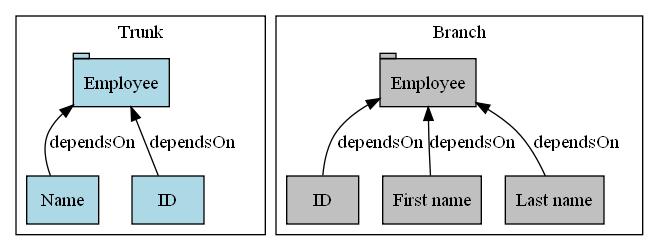
- Only carry out the trunk action - Only the parent and children of the trunk are included.
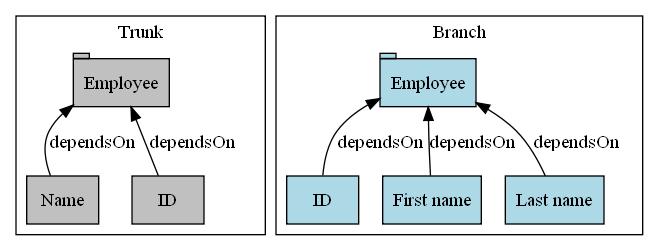
- Only carry out the branch action - Only the parent and children of the branch are included.
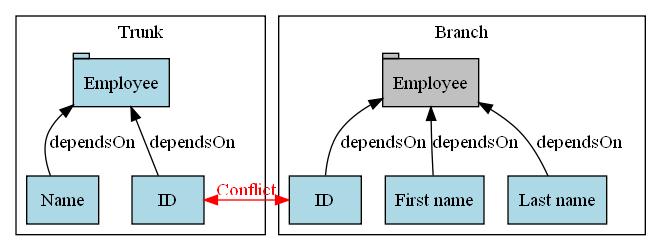
- Carry out trunk actions with dependent branch actions - The parent and children of the trunk plus the children of the branch are included.
- Carry out branch actions with dependent trunk actions - The parent and children of the branch plus the children of the branch are included.
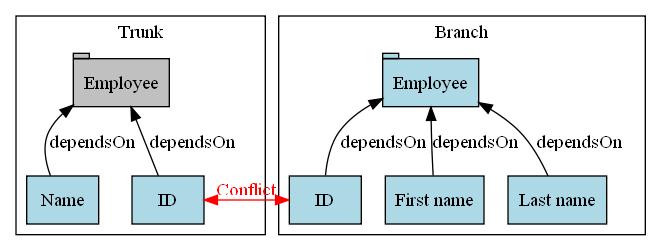
Options 3 and 4 can lead to new conflicts between the children of the trunk and the branch. These will then have to be resolved.
Comparing code
With the task Compare code, it is possible to compare and merge the different values of a column for the conflicts Dual change and Dual addition with an external comparison table (WinMerge or KDiff3). After saving the file in the comparison tool, the merged text is transferred to the pop-up. By clicking on OK, the value is stored with the branch and the processing set to Only carry out branch.
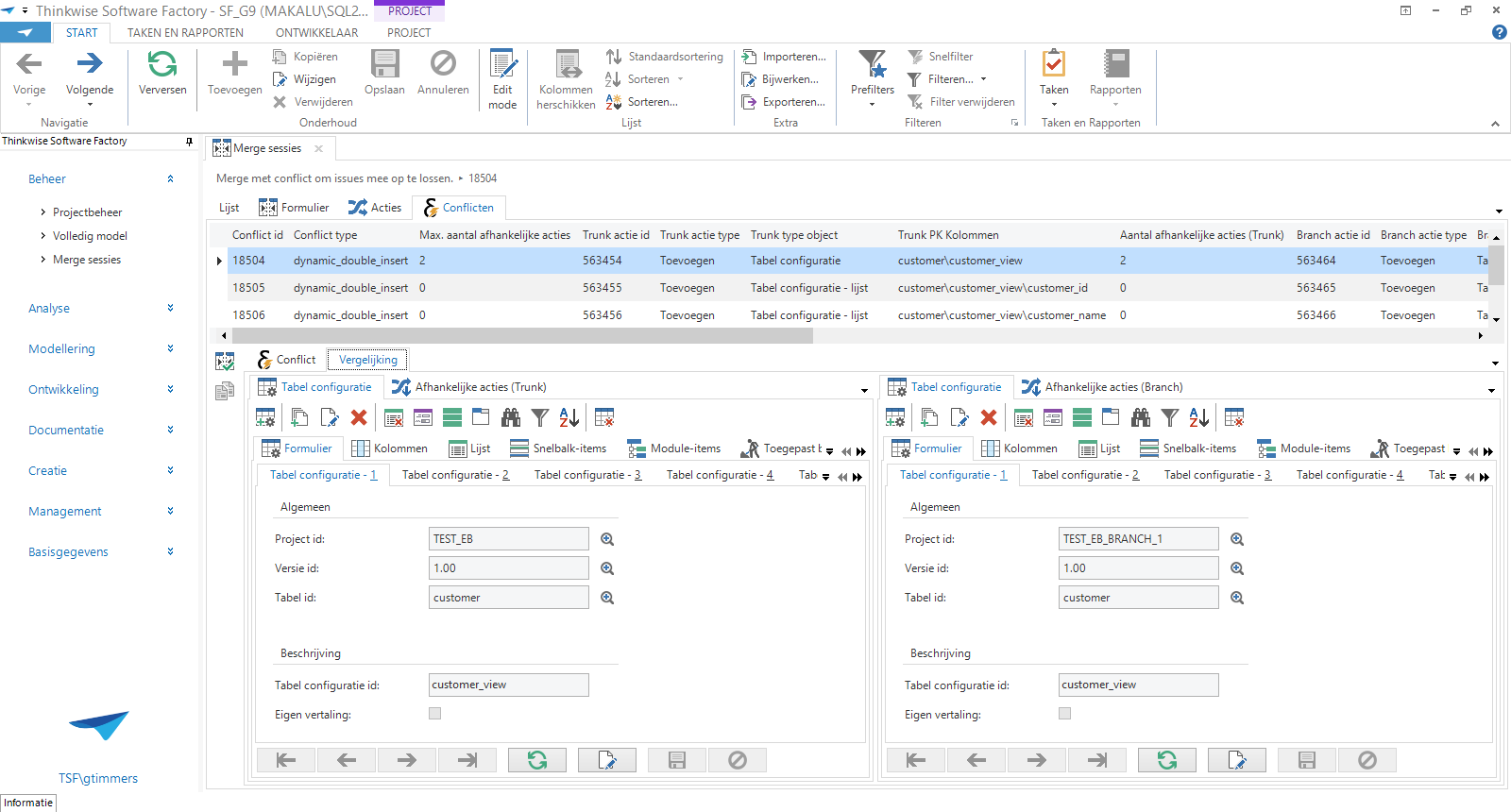 A conflict comparison during a merge session
Execute merge session
Only when all conflicts have been resolved, can the Execute merge session  task be started to perform the actual merge.
After the merge, a new project version is created in the target project and the merged project versions are deactivated.