
Project overview
The Project overview screen shows a list of all projects in the Software Factory development environment and allows you to create new projects and project versions. The Project versions tab page lists all versions of the selected project and allows you to modify the generic settings for these versions. The Branches tab page shows all branches of the selected project.
Create a new project
To create a project, click on the Add button in the ribbon or on the form. The following screen will then appear:
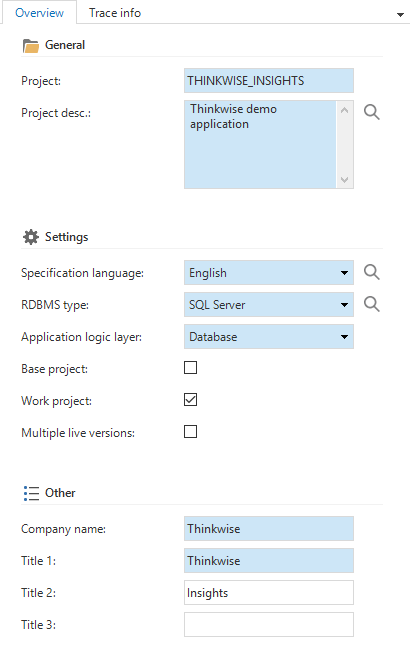 Add a new project
The following information needs to be provided to create a project. Blue fields are required fields and white fields are optional fields. Gray fields cannot be modified by hand.
A project ID and a project description.
The specification language used for requirements, data model, etc.
The relational database management system (RDBMS) to use.
The application logic layer, which determines where the application logic is stored and in which programming language to use.
With the application logic layer Database, the programming language is the SQL dialect used by the RDBMS. If Middle tier is chosen, then the application logic is written in C# or Java.
If the project is a base project or a work project (default).
Base projects are projects that are only used by other projects. A base project contains certain details that are necessary for the correct operation of a project, a supplement or an addition, such as a standard layout or a requirements model. When the base project option is checked, it is possible to opt for immediate copying, which ensures that the data in the base project is copied to linked projects immediately. Furthermore, it can be indicated whether the base project has to be linked to new projects by default.
Only base projects with the status In production are copied.
Company name and application title, displayed on the splash screen.
After clicking Save, a pop-up appears in order to create the first project version of your project.
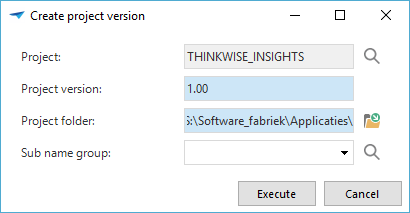 Create project version
- The Project folder determines the location on disk where files, for example reports and icons, are stored.
- Selecting a Sub name group is optional. If no sub name group is selected, a new sub name group will be created for this project. For more information on sub names, see Naming.
Create a new project version
After deploying a project version, further development is always done in a new project version. This enables the Software Factory to analyze the differences between these versions and perform an automatic database upgrade to the new version.
To create the next project version, the current version has to be copied to the new version in the project version screen with the task Copy project version in the context menu. The new version will then be exactly the same as the old version.
When copying a project version, any references to the project and version ID in files and folders, for example icons and reports, are replaced with the new project and project version ID, and the files and folders are copied to the new location.
Project version status
The status of a project version indicates the stage, or environment, the project version is in. The Copy project version task allows you to update the status of the previous project version. A new project version is created with the status Development.
The following statuses are available:
- Development - The project version is being developed.
- Test - When the development phase is completed, the project version can be tested.
- Acceptance - During the acceptance phase the users can become acquainted with the system and detect any final errors.
- Production - When the system is accepted, it is put into production. The project version can no longer be modified once it is put into production.
- Inactive - The project version is no longer used in any of the environments.
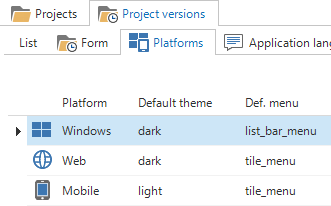
Platforms
Lists the available platforms (Windows, Web and Mobile) for this project and the default theme and menu per platform.
Application languages
The application languages to use in the user interfaces. Translations need to be provided for all terms used in every specified language.
File storage locations
The Thinkwise Platform provides multiple options for storing files like documents and photos. In the File storage locations tab page, you can create or update the file storage locations used by your application. For more information, see file storage.
Database storage locations
For SQL Server, the file locations for the database can be set here. When empty, the default server settings are used. For more information, see Database files and filegroups.
Base projects
Provides an overview of the linked base projects. Here you can add new base projects or update base project versions. Execute the task Import base projects or generate the project version to import the base project model.