
Domains
Domains are abstract data types, used to indicate the data type of columns and parameters. Changing a domain will update all columns and parameters that use this domain. Depending on the database management system, user-defined data types or reference-fields are created for domains to be used in SQL business logic.
A domain always contains a data type and possibly a length and scale. A domain can optionally contain domain elements to offer the user a pre-defined selection. A control can be specified that is used to visualize the columns and parameters in the user interface, for instance as a text field, an image or a checkbox.
Several default settings for columns can also be provided. An example of this is the Mandatory field. If this is checked, new columns created with this domain are also mandatory by default. You can still uncheck this option on a per column basis.
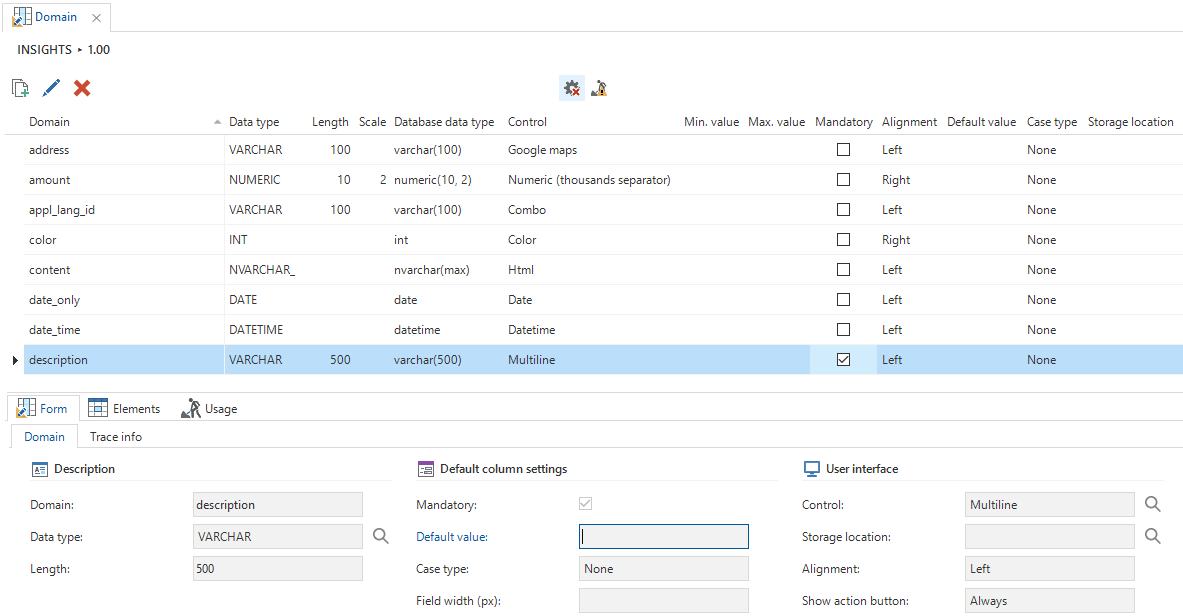 Overview of the Domains tab
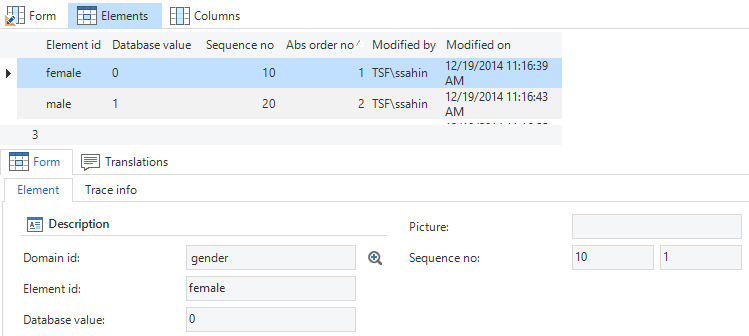 Adding elements to a domain
Controls
Using a control, you can specify how a column should be displayed in the user interface. The following options are available:
| Control | Description | Platform | SQL | ORACLE | DB2 |
|---|---|---|---|---|---|
| CALCULATOR | Displays a calculator for carrying out a calculation. | Windows/Web | INT, NUMERIC | INT, NUMERIC | INT, NUMERIC |
| CHECK BOX | Gives the possibility to check a checkmark. The value can be on, off or unknown. | All | BIT, TINYINT, SMALLINT | SMALLINT | SMALLINT |
| CODE EDITOR | Internal use. | Windows/Web | |||
| COLOR | Selecting a color. | Windows/Web | INT | INT | INT |
| COMBO | Selecting a value from a list. | All | Depending on elements | Depending on elements | Depending on elements |
| CURRENCY | For compatibility, use NUMERIC. | All | NUMERIC | NUMERIC | NUMERIC |
| DATE | Displays a calendar in which a date can be entered. | All | DATE, DATETIME | DATE, TIMESTAMP | DATE, TIMESTAMP |
| DATETIME | Displays a calendar for selecting the date and a time format in hours, minutes and seconds. | All | DATETIME | TIMESTAMP | TIMESTAMP |
| Opening an email program with email address as send to. | All | VARCHAR | VARCHAR2 | VARCHAR | |
| FILE | When entering or modifying a file, location can be selected. | All | VARCHAR | VARCHAR2 | VARCHAR |
| FILE_UPLOAD | Uploading and downloading a file. The default value of the column is the standard file location for the Windows GUI. The File storage folder is used for the Web GUI if files are uploaded. | All | VARCHAR | VARCHAR2 | VARCHAR |
| FOLDER | Selecting and opening a folder. | Windows/Web | VARCHAR | VARCHAR2 | VARCHAR |
| FONT | Selecting a font. | Windows/Web | VARCHAR | VARCHAR2 | VARCHAR |
| GOOGLE_MAPS | Opening Google maps based on a location. | Windows/Web | VARCHAR | VARCHAR2 | VARCHAR |
| HTML | Text is displayed as HTML. | Windows/Web | NVARCHAR | NVARCHAR2/NCLOB | VARGRAPHIC/DBCLOB |
| IMAGE_COMBO | Selecting an image from a list. | Windows/Web | Depending on elements | Depending on elements | Depending on elements |
| IMAGE_LINK | Selecting and displaying a photo. | All | VARCHAR | VARCHAR2 | VARCHAR |
| IMAGE_UPLOAD | Uploading a photo. | All | VARCHAR | VARCHAR2 | VARCHAR |
| MULTILINE | Editing a text with several lines, possibly via a separate pop-up screen. | All | VARCHAR | VARCHAR2 | VARCHAR |
| NUMERIC | Displays numbers with a comma for thousands. | All | NUMERIC | NUMERIC | NUMERIC |
| PASSWORD | The text is replaced by an asterisk. | All | VARCHAR | VARCHAR2 | VARCHAR |
| PERCENTAGE | Displays numbers as a percentage. | All | INT | INT | INT |
| RADIO HORIZONTAL | Displays a horizontal list with various options. | All | TINYINT | SMALLINT | SMALLINT |
| RADIO VERTICAL | Displays a vertical list with various options. | All | TINYINT | SMALLINT | SMALLINT |
| RTF | Text is displayed as RTF. | All | NVARCHAR_MAX | NVARCHAR2 | VARCHAR |
| SIGNATURE | Field to enter a signature. | Mobile | VARCHAR | VARCHAR | VARCHAR |
| SQLEDITOR | Internal use. | Windows/Web | |||
| TIME | Time format in hours, minutes and seconds. The time can possibly be selected with an up and down button. | All | TIME | TIMESTAMP | TIME |
| GROUP HEADER LABEL | Creates a header label from your own data | All | VARCHAR | VARCHAR2 | VARCHAR |
| GROUP HEADER ICON | Creates an icon in front of the group header label | All | VARCHAR | VARCHAR2 | VARCHAR |
| LABEL | Creates a label without a field | All | VARCHAR | VARCHAR2 | VARCHAR |
| URL | Opening URL in the active browser. | All | VARCHAR | VARCHAR | VARCHAR |
If the password control is used, the field has not yet been encrypted. The value will therefore still be visible in the database when it is stored and can also be passed on to the defaults and layouts.
Domain elements
Domain elements have to be defined for the COMBO and RADIO BUTTON controls. The user can choose from these elements for a column with this domain. The element ID is used in the translation module to translate the elements. The database value is the value that is stored in the database (often numerically, but this is not mandatory).
The domain gender has the elements unknown, man and woman with database values 0, 1 and 2. Instead of displaying this as text in a combo box, an icon of a man and woman can now be displayed in the combo box.
If you select the IMAGE_COMBO control, an image must be added to the elements. This replaces the text.
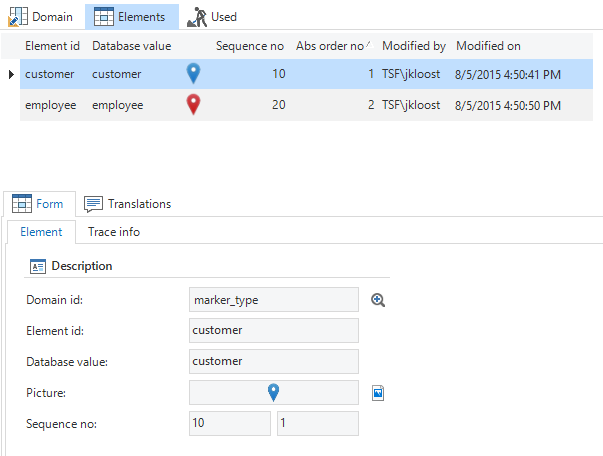 An example of using images in domain elements
Control action buttons
Some fields are always read only, used only to show data. The Show action button option allows you to hide the action button for domain. There are three options:
- Never
- When editable
- Always
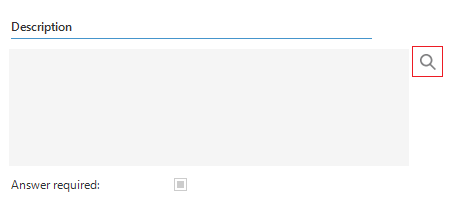 Control with action button Always