
Process flows
Process flows can be defined to automatically guide the user to the following action. A process flow consists of a number of process actions, which are linked together by process steps, so that the actions follow each other. Process steps can also be made conditional, so that these are or are not started depending on specific conditions.
A process action can, for instance, be related to updating a record, executing a task, printing a report or skipping to a tab or document in the user interface. Manual actions can also be defined. These have no effect on the user interface but present procedural actions that must be carried out by users in the organization, such as sending a particular letter.
A process flow will start if the user completes an action that is linked to the start action and no other process flow is active within the same screen.
Creating a process flow
The Process flows tab page shows an overview of the available process flows. New process flows can also be created here. The Design tab page shows a graphical representation of the selected process flow.
Process variables
Variables can be used to store data produced by process actions and retain this data throughout the lifetime of the process flow. Variables can be linked to input and output parameters and are also available in the process logic concept.
Process actions
A new process action is created by clicking on the button in the top right or via the context menu.

After clicking the button, the Process actions tab opens to create the new process action.
Each process action has its own set of input and output parameters. Input parameters provide a way to configure at runtime what a process action does, and they can be assigned a constant value or a Variable. Output parameters provide a way to store user input and/or other data produced by the process action in variables.
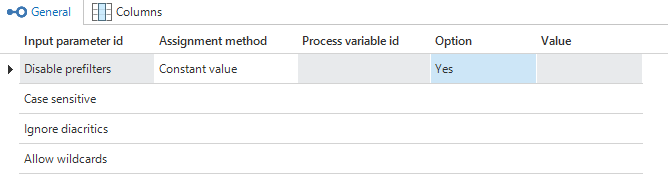 Output parameters
Process steps
Process actions are linked together using process steps. A process step can be created using the Process step button or by dragging the mouse while holding the Ctrl key. A process step can be modified by double clicking the arrow.
The color of a process step indicates when the step is enabled:
- Green - the process step is followed if the last process action was successful
- Red - the process step is followed if the last process action was not successful
- Blue - the process step is always followed
Using the process concept it is also possible to conditionally set the order and availability of process steps.
If a process action has been completed and several parallel process steps follow, then these process steps are executed based on the specified sequence number. Subsequent actions are executed after the user completes the entire parallel flow.
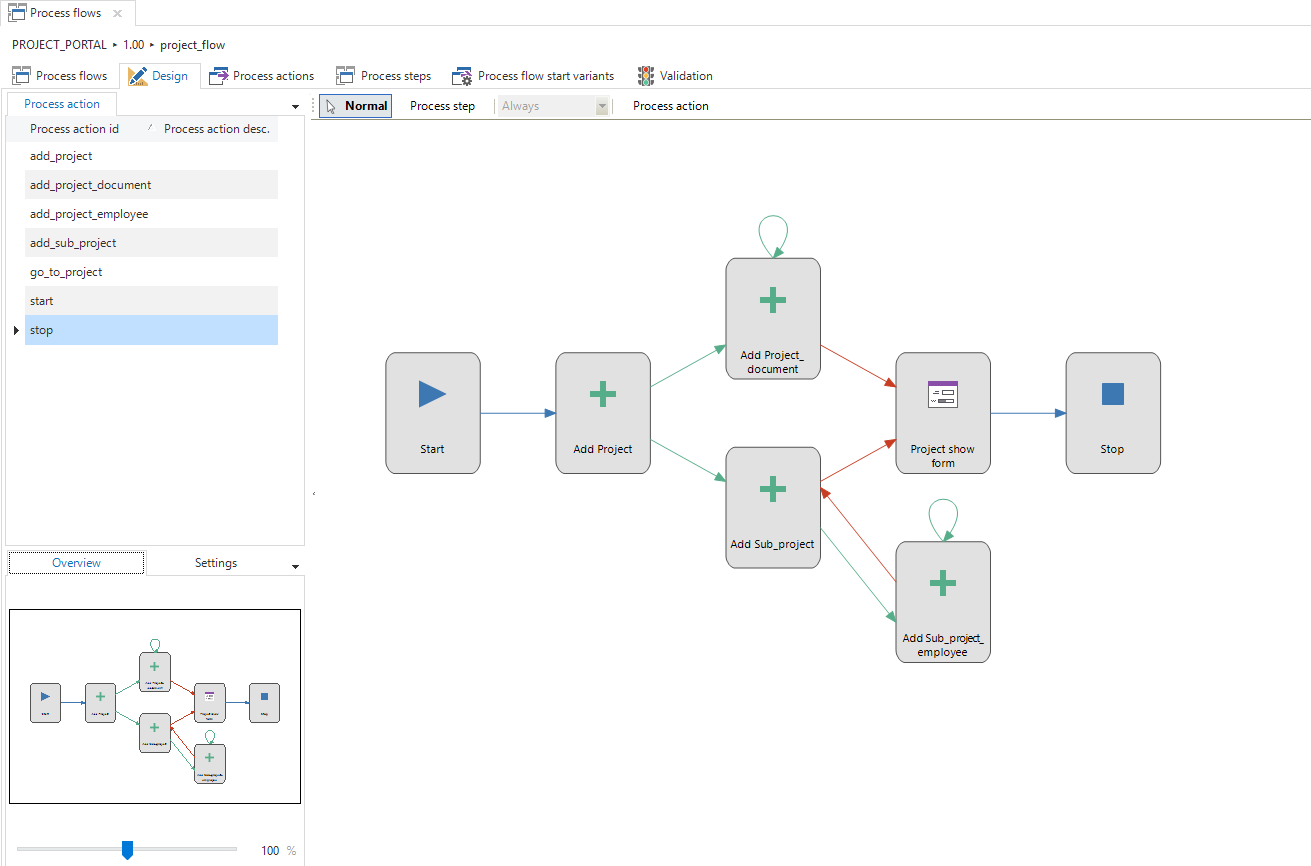 A process flow with various process steps
Starting points
Process flow starting points determine for which variants a process flow is enabled.
Process actions
The following process actions are available:
Activate document
An open document can be activated with this process action. Since tab_id and tab_variant_id are not sufficient to identify a document, this process action works on the basis of a document ID that is returned by the Document open and Zoom in on detail process actions, described in chapter 0 and chapter 0.
| Input parameters | |
|---|---|
| Document | The ID of the document that must be activated. Valid IDs of documents are only returned by the process actions Open document and Zoom in on detail. It is only possible to activate documents that are open within the same process flow. |
| Output parameters | |
|---|---|
| Status code | The status code of the executed action. 0 - Successful -1 - Unsuccessful (unknown) -2 - Unsuccessful (document not found) |
| [COL] | The value of a column of the active row. This parameter is present for every column of the subject. |
This process action requires no specific rights, because only documents can be activated that are opened by means of Open document or Zoom in on detail.
Go to row
With this process action, the GUI can be controlled to select a specific row of a specific subject on the basis of parameters that correspond with the columns of the subject in question. It is not necessary to link variables to all PK columns of the subject. If several rows correspond with the specified column value, then the first found row will be selected. However, if there are no variables linked to all PK columns of the subject, then a warning will be given when validating.
In addition, it is possible to control the way in which the row has to be searched for. In general, this will make no sense, but if it is known where the row is located, then this can make a difference in performance for large data sets. This process action will return the value of the active row as an output parameter.
| Input parameters | |
|---|---|
| [COL] | The value of a column of the subject in question. This parameter is present for every column of the subject. |
| Filter record when not found | Optional. Indicates whether an attempt must be made to filter on the row if the row cannot be found. No (default) Yes |
| Search mode | Optional. The manner in which the row will be searched for. From top to bottom (default) - From top to bottom From bottom to top - From bottom to top Down from current record - From the current row downwards Up from current record - From the current row upwards |
| Output parameters | |
|---|---|
| Status code | The status code of the executed action. 0 - Successful -1 - Unsuccessful (unknown) -2 - Unsuccessful (row not found) -3 - Unsuccessful (navigation not permitted) |
| [COL] | The value of a column of the found row. This parameter is present for every column of the subject. |
This process action requires read and navigation rights on the subject.
Enable and disable prefilters
With this process action, the prefilters on a specific subject can be enabled and disabled. This process action will replace the status of all prefilters on the subjects by the statuses that are indicated by the input parameters of the process action.
| Input parameters | |
|---|---|
| [PREFILTER] | Optional. The status of a prefilter of the subject in question. This parameter is present for all prefilters of the subject. 0 - Off 1 - On |
| Output parameters | |
|---|---|
| Status code | The status code of the executed action. 0 - Successful -1 - Unsuccessful (one or more prefilters is locked or is hidden) |
| [COL] | The value of a column of the active row. This parameter is present for every column of the subject. |
This process action requires read rights on the subject and at least one prefilter that is not locked.
Filter
Filter values on columns of a specific subject can be set with this process action. It can be indicated for each column which filter condition and which filter value must be used.
| Input parameters | |
|---|---|
| [COL] | Optional. The filter value that must be set on the column in question as an equal to filter condition. This parameter is present for every column of the subject. |
| Disable prefilters | Optional. Indicates whether the prefilters must be disabled for this filter action. No (default) Yes |
| Case sensitive | Optional. Indicates whether the filter conditions are case sensitive. No Yes The default depends on the rdbms used. |
| Ignore diacritics | Optional. Indicates whether letters with diacritics must be treated as normal letters. No Yes The default depends on the application settings. |
| Allow wildcards | Optional. Indicates whether it is permitted to use wild cards in filter conditions. No Yes The default depends on the application settings. |
| Output parameters | |
|---|---|
| Status code | The status code of the executed action. 0 - Successful |
| [COL] | The value of a column of the active row. This parameter is present for every column of the subject. |
This process action requires read and filter rights on the subject and filter rights on at least one of the columns of the subject.
Sort
The sorting of a specific subject can be modified with this process action. It can be indicated for each column which sorting is applied.
| Input parameters | |
|---|---|
| [COL] (sort direction) | The sort direction that will be applied to the column. This parameter is present for every column of the subject. For every column for which this parameter is specified, the sequence number must also be specified. 0 - Ascending 1 - Descending |
| [COL] (sequence number) | Gives the sequence number of this column in the sort. |
| Output parameters | |
|---|---|
| Status code | The status code of the executed action. 0 - Successful |
| [COL] | The value of a column of the active row. This parameter is present for every column of the subject. |
This process action requires read and sorting rights on the subject and sorting rights on at least one of the columns.
Manual
This process action is named for completeness but will remain unchanged. This process action will not have any input parameters and always returns status code 0 as output because the process action cannot fail.
| Output parameters | |
|---|---|
| Status code | The status code of the executed action. 0 - Successful |
Open document
This process action returns a unique ID of the opened document as output parameter. This ensures that the new process actions for activating a document and closing a document can be correctly implemented. As soon as several documents of the same subject are open, it must be possible to activate or close a specific open document.
| Input parameters | |
|---|---|
| Try use an existing document | When set to Yes, the process flow will attempt to use an existing document. Documents in edit mode will not be a candidate. |
| Open as floating document | When set to Yes, the process flow will open a new document as floating if the GUI supports this. |
Opening a new document can be used as a trigger for a new process flow. However, activating an existing document via the menu or otherwise will not trigger a new process flow.
Opening a new document can be modified by the process flow to try and use an existing document instead if the process action is configured to do this. Likewise, opening a non-floating document can be modified by the process flow to open as floating instead and vice-versa.
| Output parameters | |
|---|---|
| Status code | The status code of the executed action. 0 - Successful -1 - Unsuccessful (unknown) |
| Document | The ID of the document that is opened or NULL if not successful. |
| [COL] | The value of a column of the active row. This parameter is present for every column of the subject. |
Close document
An open document can be closed with this process action. Since tab_id and tab_variant_id are not sufficient to identify a document, this process action works on the basis of a document ID that is returned by the Document open and Zoom in on detail process actions, described in chapter 0 and chapter 0.
| Input parameters | |
|---|---|
| Document | Optional. The ID of the document that has to be closed. If this process action is not a start action, then the value of this parameter will be used to determine which document must be closed. Valid IDs of documents are only returned by the process actions Open document and Zoom in on detail. If empty, the active document will be closed, which is the same as the current behavior of this process action. This process action can only be used to close the initial document and documents that are opened within the same process flow. |
| Output parameters | |
|---|---|
| Status code | The status code of the executed action. 0 - Successful -1 - Unsuccessful (unknown) -2 - Unsuccessful (document not found) |
| Document | The ID of the document that is active after closing the previous document. Only filled if the active document is opened with the Open document or Zoom in on detail process actions. |
Go to detail
This process action has no input parameters and returns the following output parameters:
| Output parameters | |
|---|---|
| Status code | The status code of the executed action. 0 - Successful -1 - Unsuccessful (unknown) -2 - Unsuccessful (detail not found) |
| [COL] | The value of a column of the active row. This parameter is present for every column of the subject. |
Zoom in on detail
This process action has no input parameters and returns the following output parameters:
| Output parameters | |
|---|---|
| Status code | The status code of the executed action. 0 - Successful -1 - Unsuccessful (unknown) -2 - Unsuccessful (detail not found) |
| [COL] | The value of a column of the active row. This parameter is present for every column of the subject. |
Add record
This process action receives input parameters to assign values to the columns of the subject (comparable with a default procedure). These input values have no effect if this process action is used as a start action. Since the value of a column can be set in different ways, it is important to apply clear priorities. The value needs to be applied in the following sequence:
Default value Link with context Input parameters of the process action Default procedure.
Finally, this process action receives an output parameter with a status code.
| Input parameters | |
|---|---|
| [COL] | Optional. The value of a column of the subject in question. If this process action is not a start action, then this value will be entered in the column in question. This parameter is present for every column of the subject. |
| Output parameters | |
|---|---|
| Status code | The status code of the executed action. 0 - Successful -1 - Unsuccessful (unknown) -2 - Unsuccessful (adding not permitted) -3 - Unsuccessful (cancelled by user) |
| [COL] | The value of a column of the added row. This parameter is present for every column of the subject. |
Modify record
This process action will also work in combination with modifications in the list. If this process action is not a start action, then the GUI will give preference to a form to deal with the action. If there is no form present, then the GUI will try to find a grid. If a record in the grid is modified, is successfully stored and there is a follow-up action that can be called, then a possible row switch action that handles the save of the data will be prevented.
This process action receives input parameters to assign values to the columns of the subject (comparable with a default procedure). These input values have no effect if this process action is used as a start action. Since the value of a column can be set in different ways, it is important to apply clear priorities. The value needs to be applied in the following sequence:
Default value Link with context Input parameters of the process action Default procedure.
Finally, this process action receives an output parameter with a status code.
| Input parameters | |
|---|---|
| [COL] | Optional. The value of a column of the subject in question. If this process action is not a start action, then this value will be entered in the column in question. This parameter is present for every column of the subject. |
| Output parameters | |
|---|---|
| Status code | The status code of the executed action. 0 - Successful -1 - Unsuccessful (unknown) -2 - Unsuccessful (modifying not permitted) -3 - Unsuccessful (cancelled by user) -4 - Unsuccessful (original row no longer exists) |
| [COL] (old row) | The value of a column of the old row. This parameter is present for every column of the subject. |
| [COL] (new row) | The value of a column of the new row. This parameter is present for every column of the subject. |
Delete record
This process action remains unchanged but receives an output parameter including a status code.
| Output parameters | |
|---|---|
| Status code | The status code of the executed action. 0 - Successful -1 - Unsuccessful (unknown) -2 - Unsuccessful (deleting not permitted) -3 - Unsuccessful (cancelled by user) -4 - Unsuccessful (row did not exist) -5 - Unsuccessful (current row is in edit mode and could not be stored) |
| [COL] | The value of a column of the deleted row. This parameter is present for every column of the subject. |
Refresh
This process action is a combination of Refresh and Refresh all, because these process actions do the exact same thing. This process action remains unchanged but receives an output parameter with a status code and output parameters that contain the values of the active row after refreshing.
| Output parameters | |
|---|---|
| Status code | The status code of the executed action. 0 - Successful -1 - Unsuccessful (unknown) |
| [COL] | The value of a column of the active row. This parameter is present for every column of the subject. |
Execute the task from within/outside the context
These process actions receive input parameters to be able to control the input parameters of the task (comparable with a default procedure). These input values have no effect if this process action is used as a start action. Since the value of a task parameter can be set in different ways, it is important to apply clear priorities. The value needs to be applied in the following sequence:
Default value Link with column Link with process flow Variable Default procedure.
Finally, these process actions receive an output parameter with a status code.
| Input parameters | |
|---|---|
| [PARAM] | Optional. The value of a parameter of the task. If this process action is not a start action, then the value of this parameter will be filled with the associated task parameter. This parameter is present for each input parameter of the task. |
| Output parameters | |
|---|---|
| Status code | The status code of the executed action. 0 - Successful -1 - Unsuccessful (unknown) -2 - Unsuccessful (task not found) -3 - Unsuccessful (cancelled by user) |
| [PARAM] | The value of a parameter of the task. This parameter is present for each parameter of the task, input and output. |
Open report from within/outside the context
These process actions receive input parameters to be able to control the parameters of the report (comparable with a default procedure). These input values have no effect if this process action is used as a start action. Since the value of a report parameter can be set in different ways, it is important to apply clear priorities. The value needs to be applied in the following sequence:
Default value Link with column Link with process flow Variable Default procedure.
Finally, these process actions receive an output parameter with a status code.
| Input parameters | |
|---|---|
| [PARAM] | Optional. The value of a parameter of the report. If this process action is not a start action, then the value of this parameter will be filled with the associated report parameter. This parameter is present for every parameter of the report. |
| Output parameters | |
|---|---|
| Status code | The status code of the executed action. 0 - Successful -1 - Unsuccessful (unknown) -2 - Unsuccessful (report not found) -3 - Unsuccessful (cancelled by user) |
| [PARAM] | The value of a parameter of the report. This parameter is present for every parameter of the report. |
Activate grid and activate form
These process actions receive an output parameter with a status code and output parameters that contain the values of the active row.
| Output parameters | |
|---|---|
| Status code | The status code of the executed action. 0 - Successful -1 - Unsuccessful (unknown) |
| [COL] | The value of a column of the active row. This parameter is present for every column of the subject. |
Edit in grid on/off
These process actions receive an output parameter with a status code and output parameters that contain the values of the active row.
| Output parameters | |
|---|---|
| Status code | The status code of the executed action. 0 - Successful -1 - Unsuccessful (unknown) -2 - Unsuccessful (not permitted to enable edit mode or not possible to disable edit mode because the row cannot be stored) |
| [COL] | The value of a column of the active row. This parameter is present for every column of the subject. |
Remove filters, reset filters and default prefilters on
These process actions receive an output parameter with a status code and output parameters that contain the values of the active row.
| Output parameters | |
|---|---|
| Status code | The status code of the executed action. 0 - Successful -1 - Unsuccessful (unknown) |
| [COL] | The value of a column of the active row. This parameter is present for every column of the subject. |
Go to first/previous/next/last row
These process actions receive an output parameter with a status code and output parameters that contain the values of the active row.
| Output parameters | |
|---|---|
| Status code | The status code of the executed action. 0 - Successful -1 - Unsuccessful (unknown) -2 - Unsuccessful (navigation not permitted) -3 - Unsuccessful (the [first/last] row is already active) |
| [COL] | The value of a column of the active row. This parameter is present for every column of the subject. |
Show message
This process action shows a predefined message to the user. Messages used in process flows can contain parameters in their translation which correspond to the IDs of the variables in the process flow. The user interface will replace these parameters with the current value of the corresponding Variable. For example: The value of variable_1 is: {variable_1}.
The value of the selected Message option is return as the status code of the process action.
Connectors
Ten special process action types are available, called connectors. Connectors are different from the other process action types in that they do not expose GUI features for automation but enable you to connect to other applications, services and media through various common protocols.
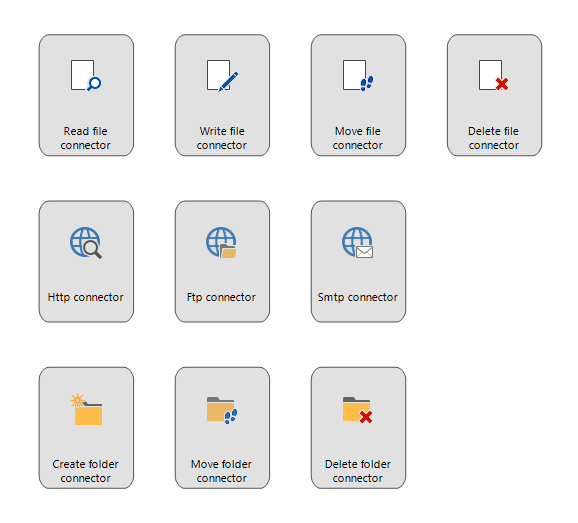 Connector process action type
The following connectors are available:
HTTP(S) connector
The HTTP(S) connector provides the following input options with which several properties of an http(s) request can be controlled.
| Input options | |
|---|---|
| URL | The complete url that will be used for the request. |
| HTTP method | The HTTP method that will be used for the request, such as GET or POST. |
| Headers | Optional. The header that will be provided with the request. This input option must be completed in the following manner:[ { "Key": "Header1", "Value": "Value1" }, { "Key": "Header2", "Value": "Value2" } ] |
| Cookie | Optional. A possible cookie that will be provided with the request. |
| Content-Type | Optional. The MIME type for the content that will be provided with the request. |
| Content | Optional. The content that will be sent with the request, for instance with a POST. |
| Authentication type | Optional. The authentication type that will be used for the request. None (default) - No authentication Basic - Basic authentication Digest - Digest authentication Windows (Negotiate) - Negotiate (NTLM/Kerberos) |
| http_con_username | Optional. The user name that will be used for the authentication, if applicable. |
| Password | Optional. The password that will be used for the authentication, if applicable. |
| Timeout | Optional. An integer that indicates the timeout of the request in milliseconds. Default is 100,000. |
| Output options | |
|---|---|
| Status code | The status code of the executed action. 0 - Successful -1 - Unsuccessful (unknown) -2 - Unsuccessful (invalid URL) -3 - Unsuccessful (invalid HTTP method) -4 - Unsuccessful (invalid headers) -5 - Unsuccessful (invalid cookie) |
| HTTP status code | The HTTP status code of the response. For example 200, 403, 404, 500, etc. |
| Headers | The headers of the response. The headers will be mutually separated by semi-colons. For each header, the key and the value will be separated by a colon. |
| Set-Cookie | The HTTP Cookie that possibly returns with the response. |
| Content-Type | The MIME type for the content that was returned with the response. |
| Content encoding | The encoding that is used for the content in the response. |
| Content-Length | The length of the content of the response. |
| Content-Disposition | Possibly contains a suggestion for a file name. |
| Content | The content of the response. |
FTP(S) connector
The FTP(S) connector provides the following input options with which several properties of an ftp(s) request can be controlled.
| Input options | |
|---|---|
| URL | The complete URL that will be used for the request. |
| FTP method | The FTP method that will be used for the request. ftp_method_appe - Append a file ftp_method_dele - Delete a file ftp_method_retr - Download a file ftp_method_mdtm - Retrieve the date-time stamp of a file ftp_method_list - Get a detailed list of files ftp_method_nlist - Get a short list of files ftp_method_mkd - Create a directory ftp_method_pwd - Print the name of the current working directory ftp_method_rmd - Remove a directory ftp_method_rename - Rename a directory ftp_method_size - Retrieve the size of a file ftp_method_stor - Upload a file ftp_method_stou - Upload a file with a unique name For more information, see: https://docs.microsoft.com/en-us/dotnet/api/system.net.webrequestmethods.ftp |
| New file name | Optional. In the case of a RenameFile action, this input option can be used to provide the new name for the file. |
| File data | Optional. The content that will be sent with the request, for example, with an UploadFile action. |
| Use SSL | Optional. Indicates whether SSL has to be used for the request. Possible values: Yes No (default) |
| Authentication type | Optional. The authentication type that will be used for the request. None (default) - No authentication Basic - Basic authentication |
| Username | Optional. The user name that will be used for the authentication, if applicable. |
| Password | Optional. The password that will be used for the authentication, if applicable. |
| Timeout | Optional. An integer that indicates the timeout of the request in milliseconds. Default is endless. |
| Use passive mode | Optional. No if it is necessary to wait for a connection, Yes if the connection itself must be established. Default is Yes. |
| Output options | |
|---|---|
| Status code | The status code of the executed action. 0 - Successful -1 - Unsuccessful (unknown) -2 - Unsuccessful (invalid URL) -3 - Unsuccessful (invalid FTP method) |
| FTP status code | The FTP status code of the response. For example 2xx, 4xx, 5xx, etc. |
| Status description | A description of the response status. |
| Last modified | The date and time at which the file on the server was last modified. |
| File data length | The length of the content of the response. |
| File data | The content of the response. |
SMTP connector
The SMTP connector provides the following input options with which several properties of an SMTP request and an SMTP message can be controlled.
| Input options | |
|---|---|
| SMTP server address | The host name or the IP address of the SMTP server with which the email will be sent. |
| SMTP server port | The port to which the SMTP server listens. |
| Use SSL | Optional. Whether SSL must be used for the connection. No (default) Yes |
| smtp_con_username | Optional. The user name that will be used for the authentication. |
| Password | Optional. The password that will be used for the authentication. |
| From address | The email address that will be used as sender of the email. |
| From name | Optional. The display of the sender of the email. If not specified, this will be equal to From address. |
| To recipients | Optional. A list of email addresses separated by semi-colons. These addresses appear in the TO field of the email. |
| CC recipients | Optional. A list of email addresses separated by semi-colons. These addresses appear in the CC field of the email. |
| BCC recipients | Optional. A list of email addresses separated by semi-colons. These addresses appear in the BCC field of the email. |
| Subject | The subject with which the email will be sent. |
| Message | Optional. The message of the email. |
| Message encoding | Optional. The encoding for the message of the email. ASCII UTF8 (default) UTF16 UTF32 |
| Allow HTML | Optional. Indicates whether the content of the message can be interpreted as HTML. No (default) Yes |
| Attachments | Optional. A list of file paths separated by semi-colons. The files will be read in and added as an attachment to the email. |
| Deletable attachments | Optional. A list of file paths separated by semi-colons. The files will be read in and added as an attachment to the email. These files will be deleted after transmission of the email. |
| Priority | Optional. Gives the priority of the email to be sent. Low Normal (default) High |
| Signature | Optional. The signature that is placed under the email to be sent. |
| Output options | |
|---|---|
| Status code | The status code of the executed action. 0 - Successful -1 - Unsuccessful (unknown) -2 - Unsuccessful (making a connection with server failed) -3 - Unsuccessful (from address not entered) -4 - Unsuccessful (one or more addressees could not be reached) -5 - Unsuccessful (one or more attachments could not be deleted) |
DB connector
The DB connector provides the following input options to establish a database connection.
| Input options | |
|---|---|
| Connection string | The connection string that includes the source database name, and other parameters needed to establish the initial connection, for example; SQL Server standard: Driver={SQL Server}; Server=myServerAddress; Database=myDataBase; User Id=myUsername; Password=myPassword;SQL Server Trusted: Driver={SQL Server}; Server=myServerAddress; Database=myDataBase; Trusted_Connection=True;DB2 standard: Driver={iSeries Access ODBC Driver}; System=myServerAddress; DefaultLibraries=myDataBase; UserId=myUsername; Password=myPassword; CommitMode=2; QueryTimeout=0;DB2 DSN: Dsn=myDsnName;Uid=myUsername;Pwd=myPassword |
| SQL | The SQL executed by this process action. |
| Input parameters | Optional. A list of parameters used by the SQL. |
| Output options | |
|---|---|
| Status code | The status code of the executed action. 0 - Successful -1 - Unsuccessful (unknown) -2 - Unsuccessful (empty connection string) -3 - Unsuccessful (no command text) -4 - Unsuccessful (invalid parameter json structure) |
| Result | The result of the provided SQL. |
| Output parameters | The result of the output parameters of the provided SQL. |
| SQL info message | Info messages thrown by the executed SQL. |
| SQL error message | Error messages thrown by the executed SQL. |
| SQL error code | Error code thrown by the executed SQL. |
Convert json to xml and xml to json
The conversion between json and xml can be done with this connector. SQL Server offers built-in support for JSON starting with version 2016.
| Input options | |
|---|---|
| Convert input | The input value that needs to be converted. |
| Output options | |
|---|---|
| Status code | The status code of the executed action. 0 - Successful -4 - Unsuccessful (no input) |
| Convert output | The converted output value. |
Read file from disk
Files at locations within the local network can be read using this connector.
This connector works on the basis of absolute, local file paths or UNC paths and gives as output the byte-representation of the file.
The use of environment variables, like %TEMP% or %APPDATA%, is supported.
| Input options | |
|---|---|
| File location | The path to the file that must be read. The path must be an absolute local path or a UNC path. |
| Output options | |
|---|---|
| Status code | The status code of the executed action. 0 - Successful -1 - Unsuccessful (unknown) -2 - Unsuccessful (no path specified) -3 - Unsuccessful (the specified path is too long) -4 - Unsuccessful (the specified path is invalid) -5 - Unsuccessful (the specified disk could not be found) -6 - Unsuccessful (one or more sub-folders could not be found) -7 - Unsuccessful (the file could not be found) -8 - Unsuccessful (access refused) |
| File data | The byte-representation of the file. |
Write file to disk
Files can be written to a location within the local network using this connector.
This connector works on the basis of absolute, local file paths or UNC paths, and expects the data of the file in the form of text or binary data.
The use of environment variables, like %TEMP% or %APPDATA%, is supported.
| Input options | |
|---|---|
| File location | The path to the file that must be created. The path must be an absolute local path or a UNC path. |
| File data | The binary data (bytes) of the file. |
| Write mode | The mode that determines how certain situations must be dealt with: New file (default) - There may not be a file present at the specified location. Overwrite file - There may be a file present at the specified location, this will be overwritten. Append file - There must be a file present at the specified location, this will be extended. |
| Create all subdirectories | Indicates whether the entire folder structure has to be created or that all higher level folders have to exist. No - All higher level folders have to exist already. Yes (default) - The complete folder structure will be created. |
| Encoding | Indicates the encoding to use. |
| Output options | |
|---|---|
| Status code | The status code of the executed action. 0 - Successful -1 - Unsuccessful (unknown) -2 - Unsuccessful (no path specified) -3 - Unsuccessful (the specified path is too long) -4 - Unsuccessful (the specified path is invalid) -5 - Unsuccessful (the specified disk could not be found) -6 - Unsuccessful (one or more sub-folders could not be found) -7 - Unsuccessful (the file could not be found) -8 - Unsuccessful (the file already exists) -9 - Unsuccessful (access refused) |
Move file on disk
Files from locations within the local network can be moved to other locations within the local network using this connector.
The source path and the target path are provided by means of input options and have to have the form of an absolute, local file path or UNC path.
The use of environment variables, like %TEMP% or %APPDATA%, is supported.
| Input options | |
|---|---|
| From file location | The path to the file that has to be moved. This path has to be an absolute local path or a UNC path. |
| To file location | The path to the location the file has to be moved to. This path has to be an absolute local path or a UNC path. |
| Create all subdirectories | Indicates whether the entire folder structure of To file location has to be created or that all higher level folders have to exist. No - All higher level folders have to exist already. Yes (default) - The complete folder structure will be created. |
| Output options | |
|---|---|
| Status code | The status code of the executed action. 0 - Successful -1 - Unsuccessful (unknown) -2 - Unsuccessful (no source path specified) -3 - Unsuccessful (no target path specified) -4 - Unsuccessful (one of the specified paths is too long) -5 - Unsuccessful (one of the specified paths is invalid) -6 - Unsuccessful (source path not found) -7 - Unsuccessful (source disk not found) -8 - Unsuccessful (target path not found) -9 - Unsuccessful (target disk not found) -10 - Unsuccessful (target path already exists) -11 - Unsuccessful (access refused) |
Copy file on disk
Files from locations within the local network can be copied to other locations within the local network using this connector.
The source path and the target path are provided by means of input options and have to have the form of an absolute, local file path or UNC path.
The use of environment variables, like %TEMP% or %APPDATA%, is supported.
| Input options | |
|---|---|
| From file location | The path to the file that has to be moved. This path has to be an absolute local path or a UNC path. |
| To file location | The path to the location the file has to be moved to. This path has to be an absolute local path or a UNC path. |
| Create target directory | Indicates whether the entire folder structure of To file location has to be created or that all higher level folders have to exist. No - All higher level folders have to exist already. Yes (default) - The complete folder structure will be created. |
| Output options | |
|---|---|
| Status code | The status code of the executed action. 0 - Successful -1 - Unsuccessful (unknown) -2 - Unsuccessful (no source path specified) -3 - Unsuccessful (no target path specified) -4 - Unsuccessful (one of the specified paths is too long) -5 - Unsuccessful (one of the specified paths is invalid) -6 - Unsuccessful (source path not found) -7 - Unsuccessful (source disk not found) -8 - Unsuccessful (target path not found) -9 - Unsuccessful (target disk not found) -10 - Unsuccessful (target file already exists) -11 - Unsuccessful (access refused) |
Delete file from disk
A file at a location within the local network can be deleted using this connector.
The path to the file is provided by means of an input option and has to have the form of an absolute, local file path or UNC path.
The use of environment variables, like %TEMP% or %APPDATA%, is supported.
| Input options | |
|---|---|
| File location | The path to the file that has to be deleted. This path has to be an absolute local path or a UNC path. |
| Output options | |
|---|---|
| Status code | The status code of the executed action. 0 - Successful -1 - Unsuccessful (unknown) -2 - Unsuccessful (no path specified) -3 - Unsuccessful (the specified path is too long) -4 - Unsuccessful (the specified path is invalid) -5 - Unsuccessful (the specified disk could not be found) -6 - Unsuccessful (one or more sub-folders could not be found) -7 - Unsuccessful (access refused) -8 - Unsuccessful (the file is in use) |
Create folder on disk
A folder can be created on a location within the local network using this connector.
The path to the file that has to be created is provided by means of an input option and has to have the form of an absolute, local file path or UNC path.
In addition, it can also be indicated whether the provided folder structure has to exist or may be created.
The use of environment variables, like %TEMP% or %APPDATA%, is supported.
| Input options | |
|---|---|
| Directory location | The path to the folder that has to be created. This path has to be an absolute local path or a UNC path. |
| Create all subdirectories | Indicates whether the entire folder structure from Directory location has to be created or that all higher level folders have to exist. No - All higher level folders have to exist already. Yes (default) - The complete folder structure will be created. |
| Output options | |
|---|---|
| Status code | The status code of the executed action. 0 - Successful -1 - Unsuccessful (unknown) -2 - Unsuccessful (no path specified) -3 - Unsuccessful (the specified path is too long) -4 - Unsuccessful (the specified path is invalid) -5 - Unsuccessful (the specified disk could not be found) -6 - Unsuccessful (one or more sub-folders could not be found) -7 - Unsuccessful (access refused) |
Move folder on disk
Folders from locations within the local network can be moved to other locations within the local network using this connector.
The source path and the target path are provided by means of input options and have to have the form of an absolute, local path or UNC path.
The use of environment variables, like %TEMP% or %APPDATA%, is supported.
| Input options | |
|---|---|
| From folder location | The path to the folder that has to be moved. This path has to be an absolute local path or a UNC path. |
| To folder location | The path to the location the folder has to be moved to. This path has to be an absolute local path or a UNC path. |
| Create target directory | Indicates whether the entire folder structure of To folder location has to be created or that all higher level folders have to exist. No - All higher level folders have to exist already. Yes (default) - The complete folder structure will be created. |
| Output options | |
|---|---|
| Status code | The status code of the executed action. 0 - Successful -1 - Unsuccessful (unknown) -2 - Unsuccessful (no source path specified) -3 - Unsuccessful (no target path specified) -4 - Unsuccessful (one of the specified paths is too long) -5 - Unsuccessful (one of the specified paths is invalid) -6 - Unsuccessful (source path not found) -7 - Unsuccessful (source disk not found) -8 - Unsuccessful (target path not found) -9 - Unsuccessful (target disk not found) -10 - Unsuccessful (target path already exists) -11 - Unsuccessful (access refused) |
Copy folder on disk
Folders from locations within the local network can be copied to other locations within the local network using this connector.
The source path and the target path are provided by means of input options and have to have the form of an absolute, local path or UNC path.
The use of environment variables, like %TEMP% or %APPDATA%, is supported.
| Input options | |
|---|---|
| From folder location | The path to the folder that has to be moved. This path has to be an absolute local path or a UNC path. |
| To folder location | The path to the location the folder has to be moved to. This path has to be an absolute local path or a UNC path. |
| Create target directory | Indicates whether the entire parent folder structure of To folder location has to be created or that all higher level folders of the target path have to exist. No - All higher level folders have to exist already. Yes (default) - The complete target folder structure will be created. |
| Existing file strategy | Determines the strategy of dealing with existing files at the target location. Skip existing files - Ignore existing files in the target location Overwrite existing files - Overwrite existing files in the target location Abort action (default) - Abort the process action if a file already exists in the target location. |
| Output options | |
|---|---|
| Status code | The status code of the executed action. 0 - Successful -1 - Unsuccessful (unknown) -2 - Unsuccessful (no source path specified) -3 - Unsuccessful (no target path specified) -4 - Unsuccessful (one of the specified paths is too long) -5 - Unsuccessful (one of the specified paths is invalid) -6 - Unsuccessful (source path not found) -7 - Unsuccessful (source disk not found) -8 - Unsuccessful (target path not found) -9 - Unsuccessful (target disk not found) -10 - Unsuccessful (file already exists in target folder) -11 - Unsuccessful (access refused) |
Delete folder from disk
A folder on a location within the local network can be deleted using this connector.
The path to folder is provided by means of an input option and has to have the form of an absolute, local path or UNC path.
The use of environment variables, like %TEMP% or %APPDATA%, is supported.
| Input options | |
|---|---|
| Folder location | The path to the folder that has to be deleted. This path has to be an absolute local path or a UNC path. |
| Delete all directory contents | Indicates whether the process action may or may not delete sub-folders within the specified path. No (default) - All higher level folders have to exist already. Yes - The complete folder structure will be created. |
| Output options | |
|---|---|
| Status code | The status code of the executed action. 0 - Successful -1 - Unsuccessful (unknown) -2 - Unsuccessful (no path specified) -3 - Unsuccessful (the specified path is too long) -4 - Unsuccessful (the specified path is invalid) -5 - Unsuccessful (the specified disk could not be found) -6 - Unsuccessful (one or more sub-folders could not be found) -7 - Unsuccessful (access refused) -8 - Unsuccessful (the specified path is ambiguous, there is a folder and a file with the same name) -9 - Unsuccessful (the specified folder is in use, read only or contains sub-folders) -10 - Unsuccessful (the specified folder is in use or contains sub-folders) |