
Validation
Thinkwise provides a comprehensive set of validations with the Software factory. Validations are carried out on the model to check for errors. These errors are pre-defined and specified in a base project. Consider, for instance, a requirement that a primary key always has to be at the top in a table and that each table has to have a standard sort sequence. It is also possible to create your own, company or product-specific validations.
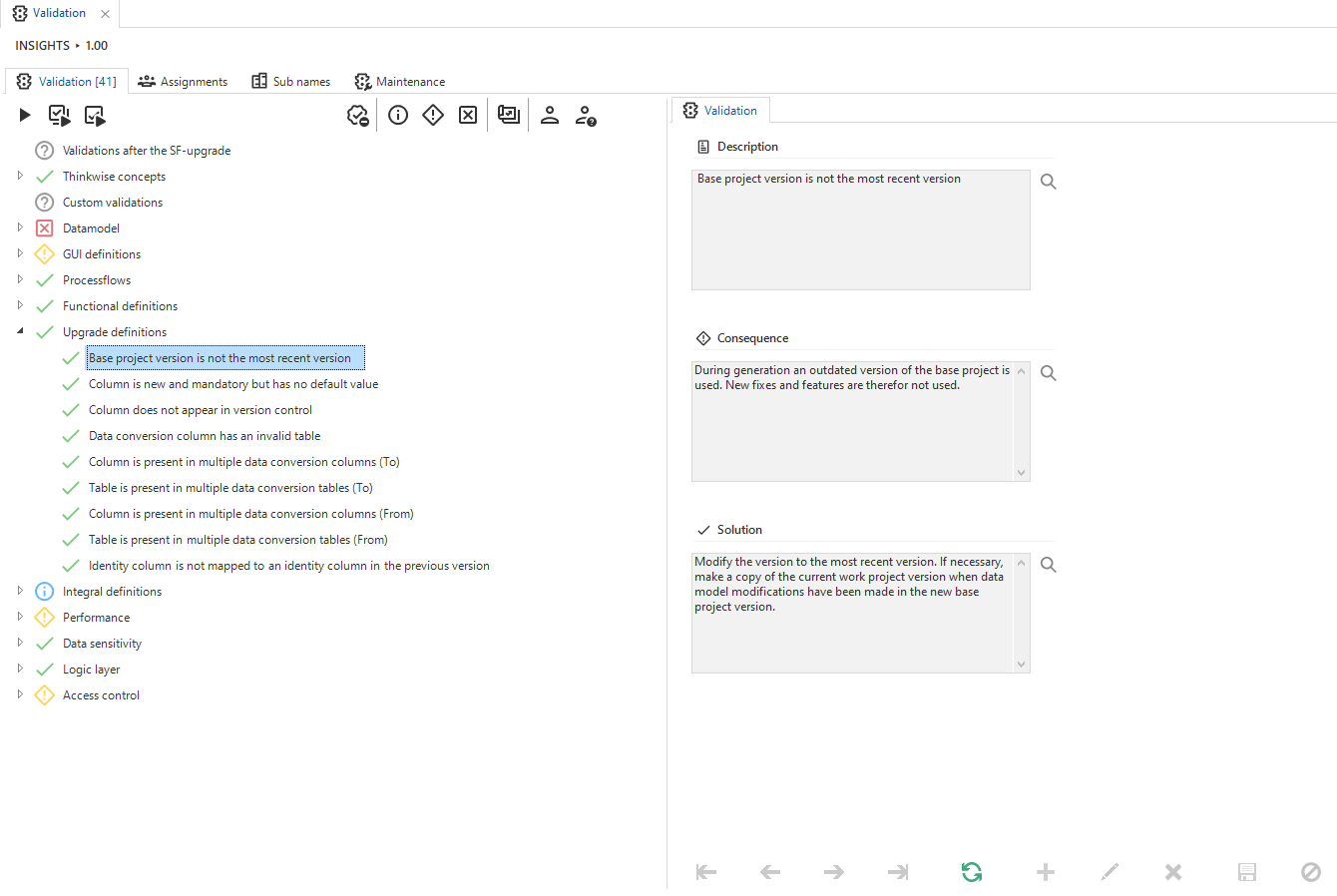 Validation screen
Every screen in the Software Factory has a Validations tab page where the validations that are specific for modeler can be executed. The Validation screen allows you to perform a full validation of your application before deployment.
Execute validations
Validations may be conducted at various levels by means of the following tasks:
- Execute all validations
- Execute validation group - executes all validations of the selected validation group
- Execute selected validation - executes the selected validation
- Approve validation message - approve a validation message so it will be hidden from the list of messages. By default, error messages cannot be approved, whereas warning or information messages can be approved. When creating your own validations it is possible to deviate from this behaviour, by setting the checkbox ‘Allow approve’.
- Undo approval
Status
After execution, an icon indicates the status of each validation:
| Pictogram | Status | Description |
|---|---|---|
 | OK | No problems found |
 | Information | Informational, no action required |
 | Warning | Possible problem |
 | Error | Problem must be resolved |
 | Unknown | Validation not executed |
Filters
Prefilters are provided to filter the validation messages:
- Hide approved messages - hides approved messages, default on
- Info, warning and error - only shows messages at the information level and higher
- Warning and error - only shows messages at the warning level and higher
- Error - only shows error messages
- New in this version - only shows messages that are new in this project version. For this filter to work, the previous project version must be validated.
- Assigned to me - only shows messages assigned to the current user.
- Unassigned - only shows messages that are not assigned to anyone.
Assign to developer
To assist in resolving validation messages, it is possible to assign messages to specific developers. Filters are available to show own or unassigned validation messages.
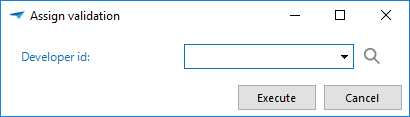
Validation assignments
The Assignments tab page shows an overview of the validation messages that are assigned to a developer.
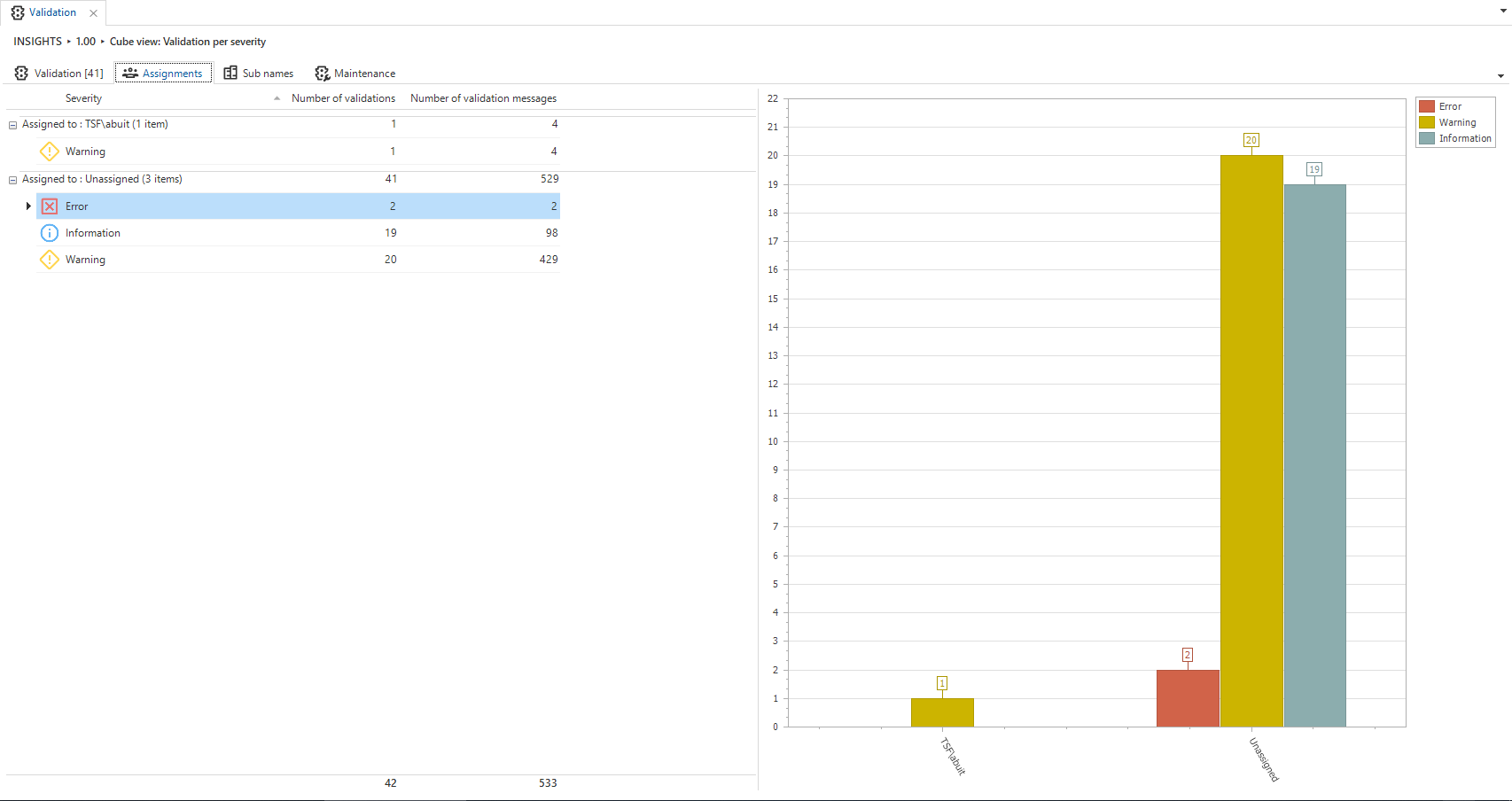 Validation assignments