
Roles
Roles can be regarded as distinct tasks or activities of an application. They are defined during development, as it requires detailed knowledge of the application's functionality.
It is important for the developer to closely assess the tasks or activities, so that there is as little overlap in rights between different roles as possible. Furthermore, the nomenclature of the roles must be clear for the IAM administrators responsible for setting up the authorization of an application. They have no knowledge of the functionality and therefore have to deduce the purpose of the roles from the role name and description.
Roles are often named after the corresponding activity, such as Approve hours or Report a ticket.
Roles can be added or modified using the Roles screen.
Creating roles
To create a new role, click the Add button on the Role's tab page. Add a name and description to the role and click Save.
Only use the All rights option for the administrator role. All other roles should provide a minimum set of rights required for the corresponding task or feature.
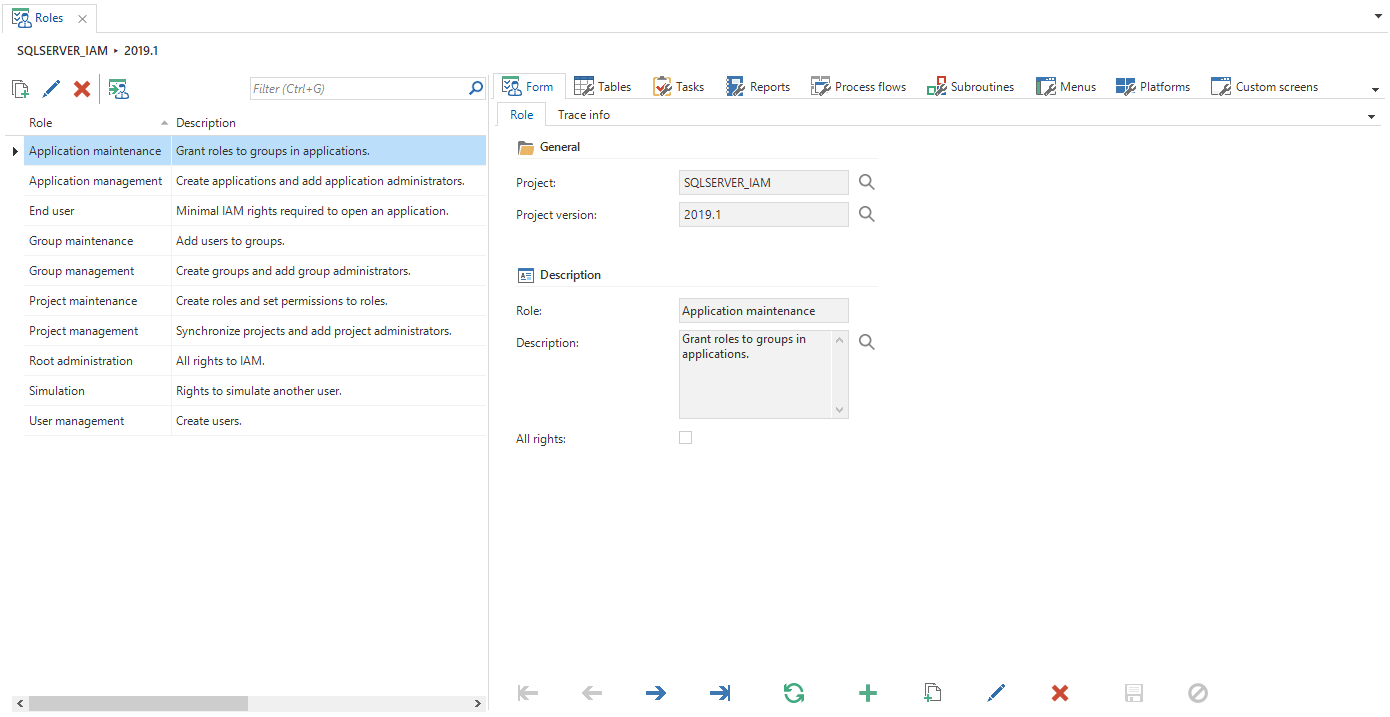 Create a role
Configuring roles
Once a role has been created, it can be configured using the tab pages on the right.
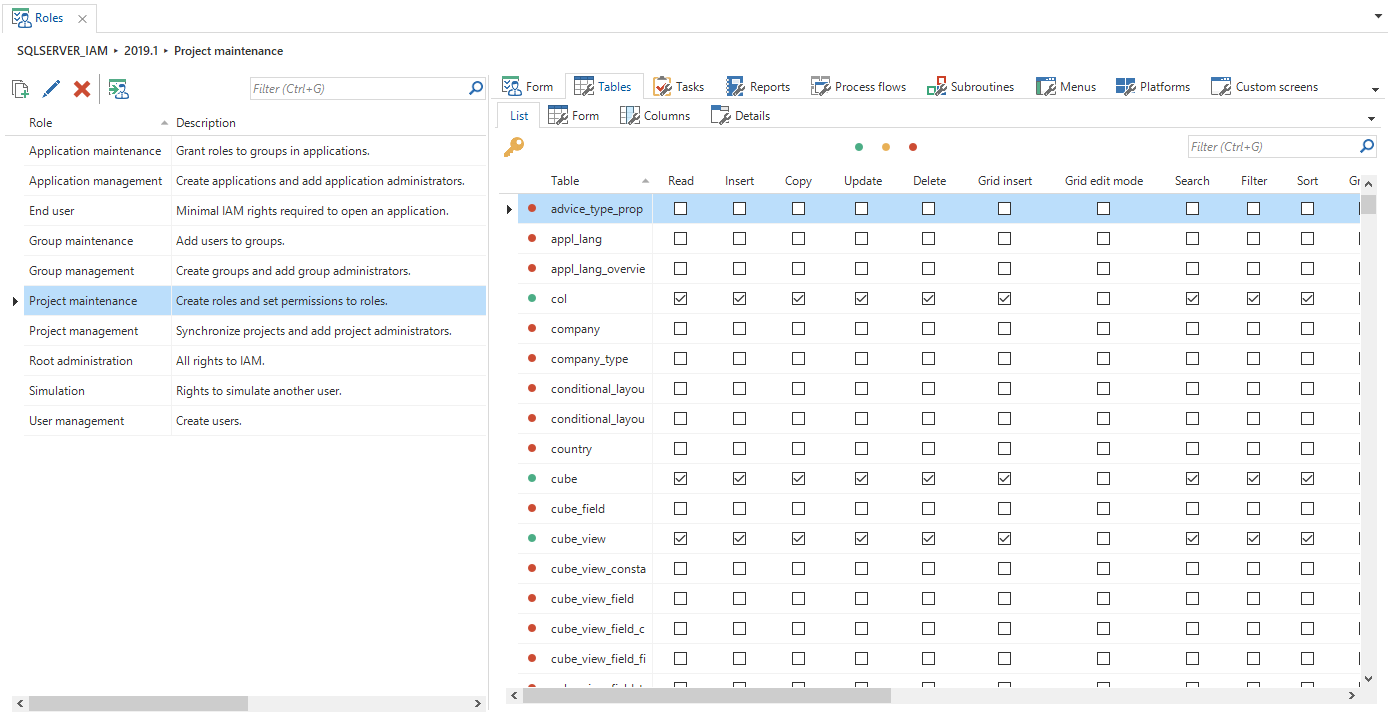 Role rights
To assign rights to a role, select the required objects and click the Assign rights task. Select a preset or check the rights you want to assign to the object.
The Assign rights task also provides the option to assign rights to any child objects, for example the columns and details of a table, and to the parent objects required for this object, for example a task for its task parameters.
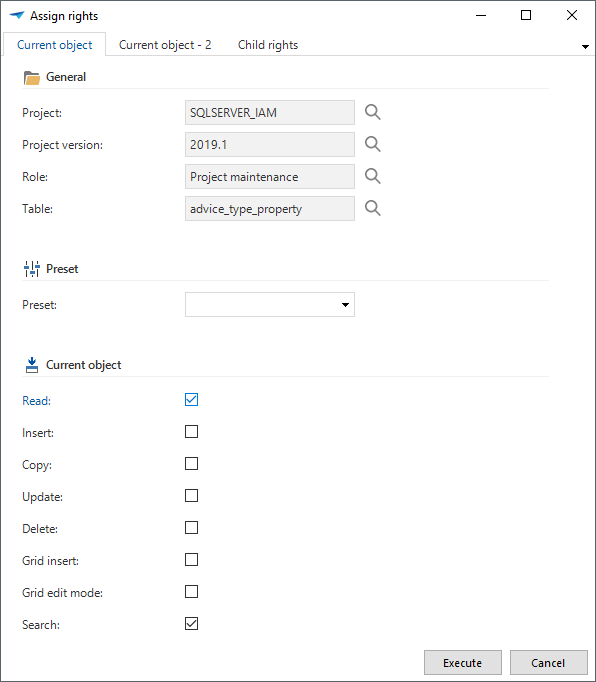 Assign rights task
The Available checkbox, visible in the grid for certain objects, indicates if the required rights are granted to the parent objects of the selected object. The green, yellow and red icons indicate the resolved rights of an object, based on the granted rights and the availability.