
Work
Development teams can leverage Work to describe, plan and keep track of development activities.
A work item describes what changes to a model need to be done, be it new parts of a model, updates to a model or removing unused parts of the model. Additionally, work can be used to describe other development activities such as testing and deployment.
Links
Requirements generally lead to work. When a requirement is not yet implemented, work can be used to describe how the requirement will be implemented. When a requirement is changed, work can be used to describe the required changes in a model.
When a work item is linked to a requirement, it will be placed at the same business process, feature and iteration of this requirement by default. Moving the requirement to a different business process, feature or iteration will also update the linked work. The work will receive an icon indicating the link in each tree:  .
.
A work item can be explicitly assigned to a different business process, feature or iteration than the requirement. This exception will remain intact even when the requirement is moved to a different business process, feature or iteration. When a work item has a different assignment, the value will be highlighted and will recieve a different icon in the corresponding tree:  . Tasks are available to restore the business process, feature or iteration of the work item to match the requirement.
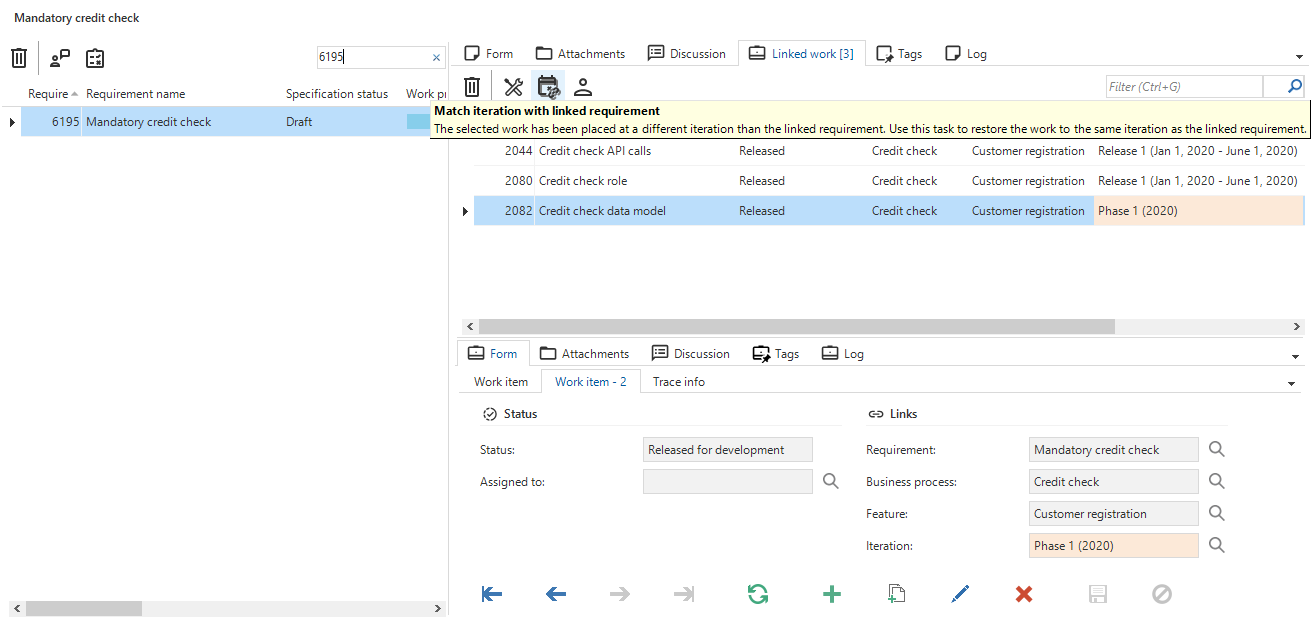 An example of a work item assigned to a different iteration than the requirement. The task can be used to quickly re-align the iteration with the requirement.
Work status
To keep track of the implementation progress, each work item has a Work status. The task  Move work status to state can be used to update the status of a work item.
The values for work status can be configured freely in the Advanced menu under Master data - Specification. An order number can be specified which decides the ordering of the various statuses in the combobox when changing the status.
Additionally, a Progress value can be defined for each status. This value will be used when determining the average progress of all work items linked to a requirement, business process, feature or iteration. Work having a status with no progress value will be excluded from this calculation.
It's also possible to define a status as inactive. When a work item has an inactive status it should indicate no more work is being performed on this work item. By default, inactive work items will not be shown in the business process, feature and iteration overviews or in the impact analysis tabs.
One default status is required and can be set using the
Set as default status task.
A work status can be configured to correspond to a certain lane in the kanban board by specifying the Kanban sequence no. When left empty, work with this status will not show up in the kanban board.
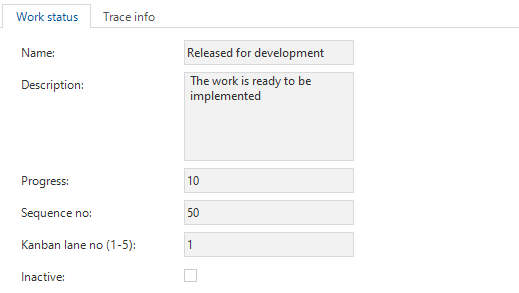 A configured work status
Planning
Linking (planned) project versions
In order to plan when a work item will be developed, a project and project version can be assigned to it. This does not need to be an existing project or project version but can also be a project or project version intended to be created in the future. Note that any name chosen here is not binding and only serves as an indication that the work will take place in a future project version.
A project version can be linked by using the task  Link (planned) project version, or by filling the (Planned) project and (Planned) project version fields in the form.
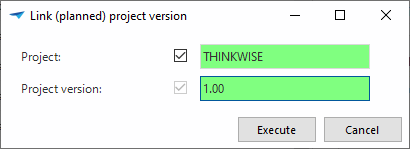 Link (planned) project version task
Checking the checkboxes in the task pop-up indicates that a future planned project version should be used.
Creating new project versions
If a work item is linked to a planned project version, this project version can be created directly from the Work screen. To do this, use the task  Create project version or branch.
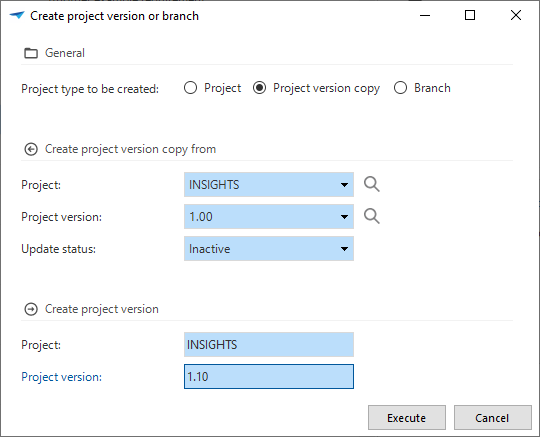 Create new project version or branch task
The task provides three options for creating new project versions:
- Create new project:
- This creates a new project.
- Copy existing project version:
- This will create a copy of an existing project version.
- Create a new branch:
- Creates a new branch based on the specified project and project version.
The task will become unavailable once the linked project version has been created or when work is linked to an already existing project version.
Tags
To quickly and freely categorize work, tags are available.
Attachments
Files can be uploaded as attachments to a work item.
Log
The work log records all changes to the links, title, description, status and attachments of a work item.